How To Connect ByBit Exchange
Disclaimer: Trading involves significant financial risk and can result in substantial losses. Past performance does not guarantee future results. SageMaster does not provide financial advice. Users should ensure compliance with local regulations.
Written By Ehsaan XP
Last updated 7 months ago
Prerequisites
Before you begin, ensure that you have the following prerequisites:
You’ve got a SageMaster account
You have a ByBit account
Connect Your Exchange
Creating a New API Key in ByBit
Log in to your ByBit account, Go to a profile icon at the top right corner, scroll down, and select API.
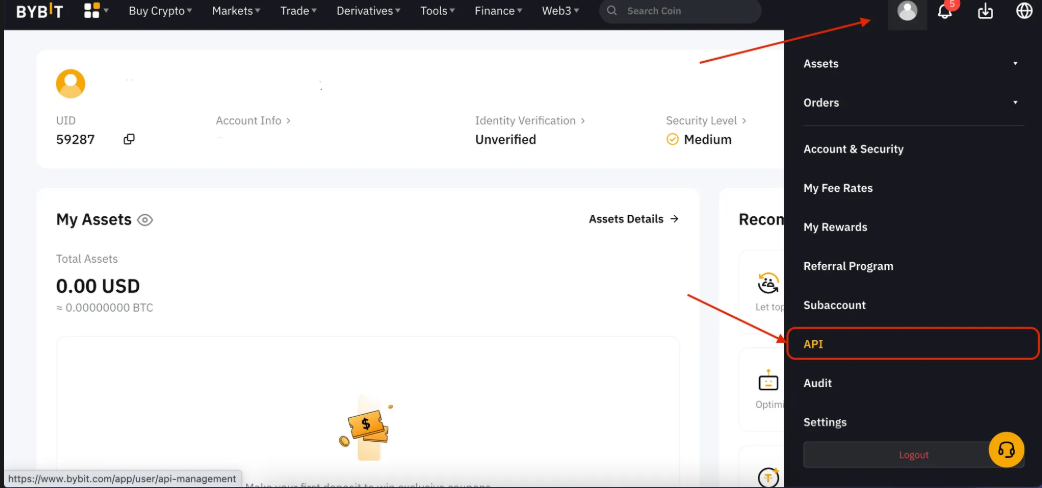
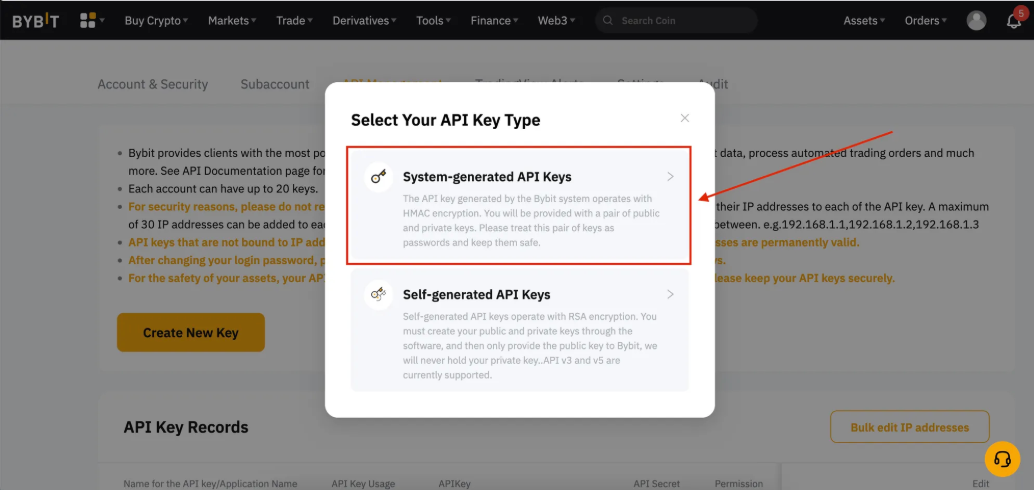
On API Management select Create New Key (see image):

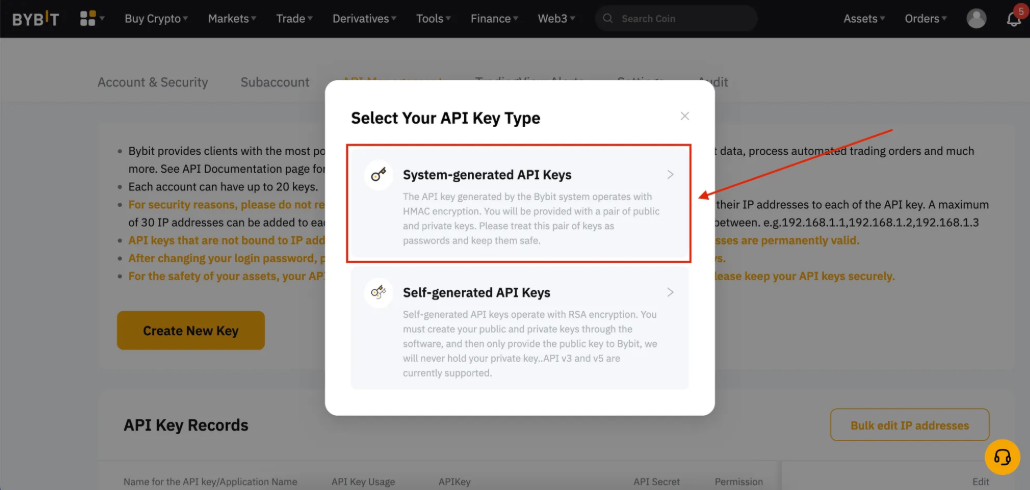
A pop-up screen opens, click on System-generated API Keys:
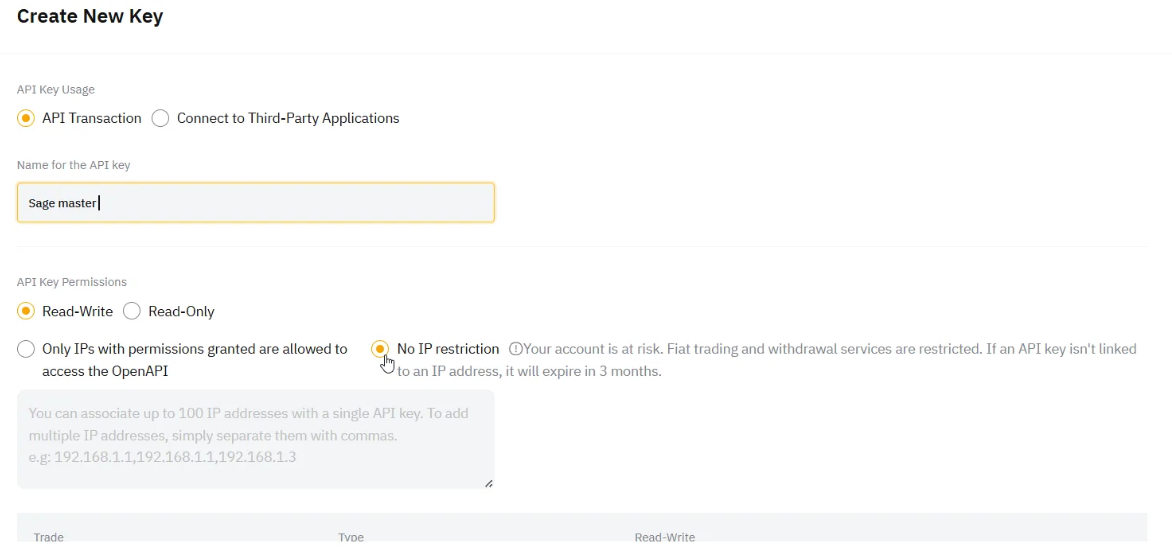
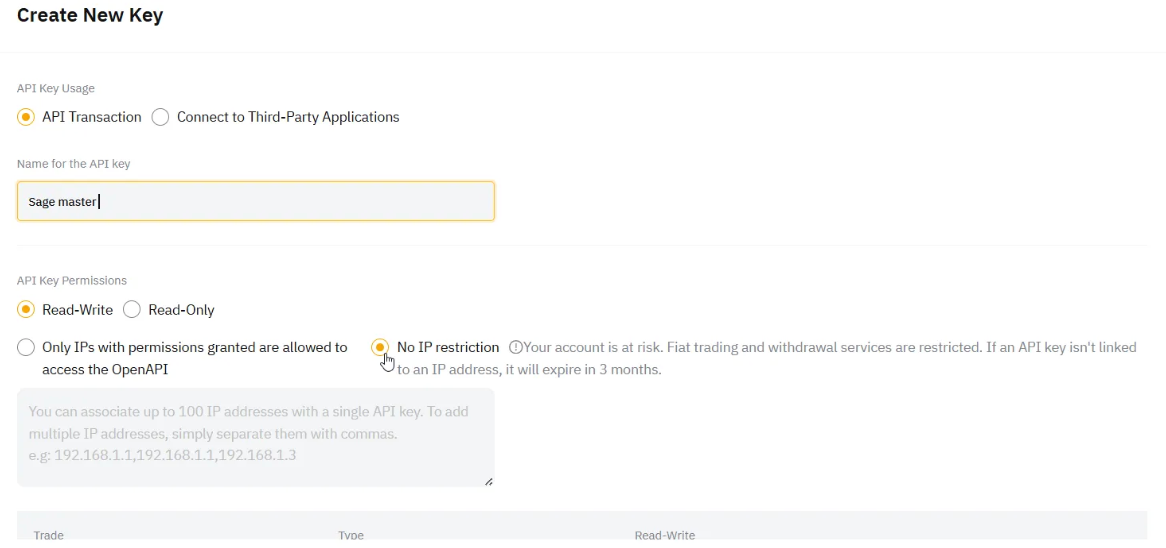
Select “API Transaction” as API Key Usage, enter a label for the API key (e.g. “SageMaster” and tick “Read-Write”; select “No IP restriction” in this section
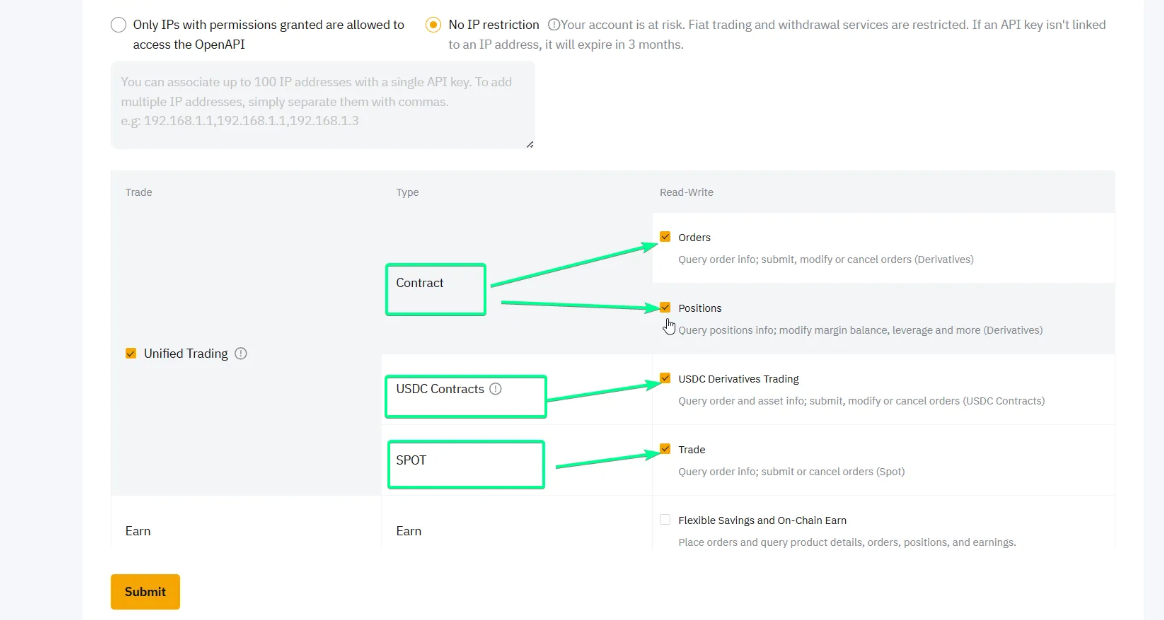
Scroll down to the list of permissions
check the “Orders” and “Positions” permissions in the Contact block
“Trade” in the Spot block.
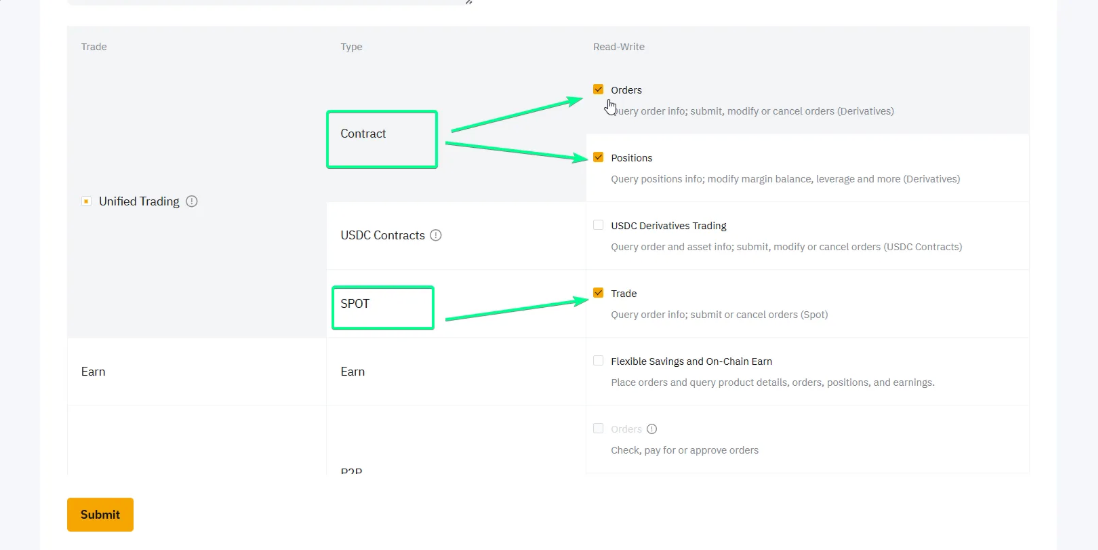
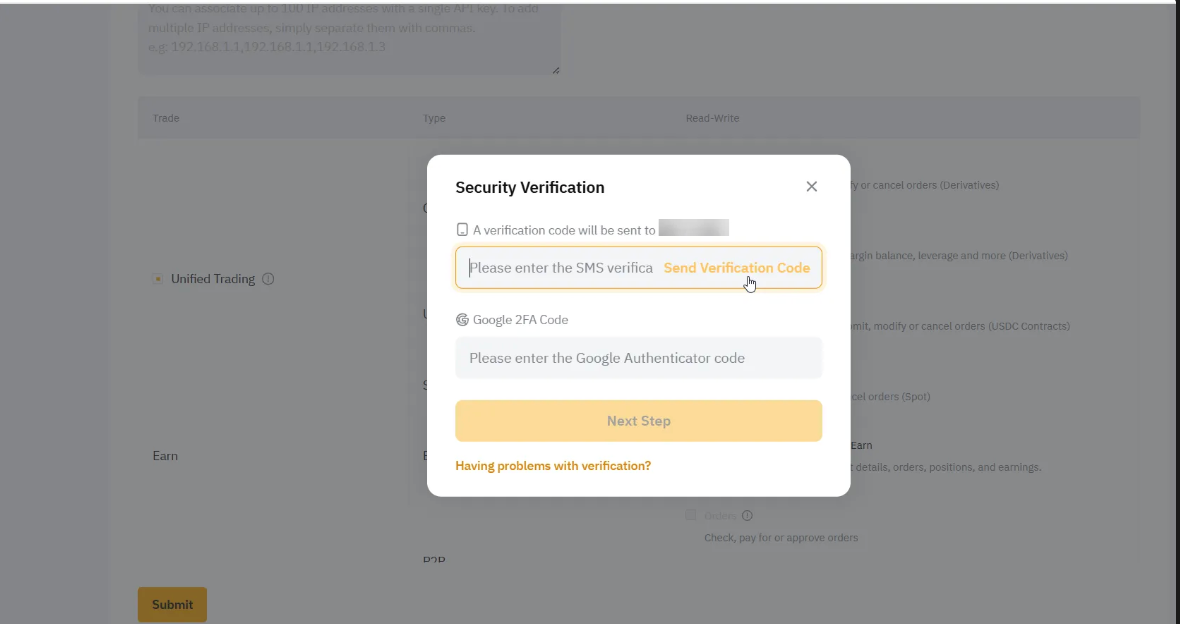
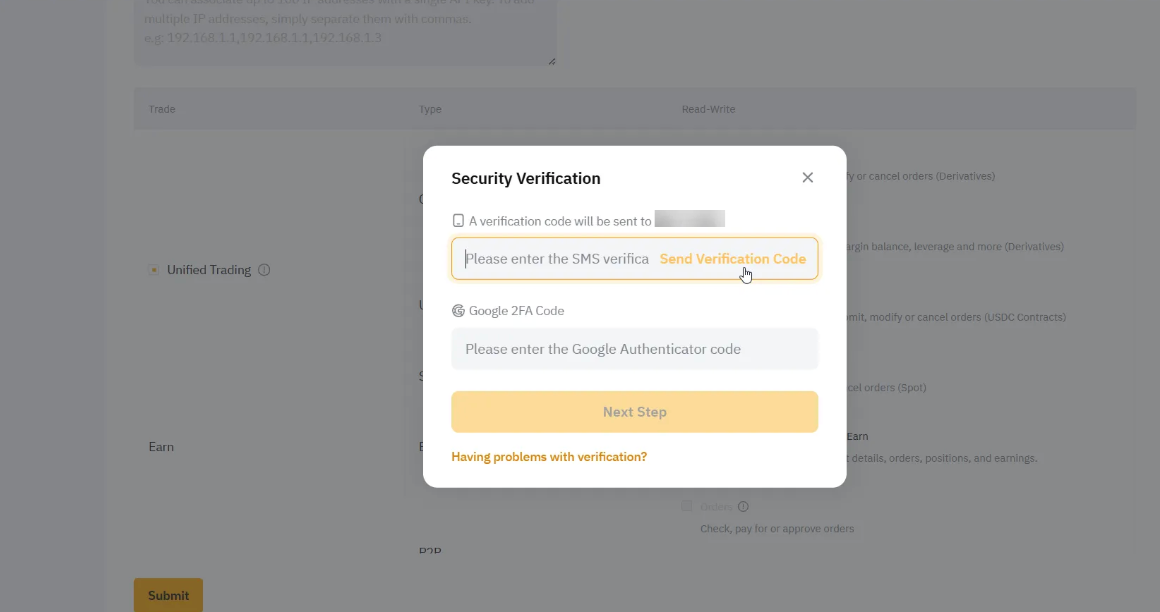
Click Submit, complete your 2FA for verification.
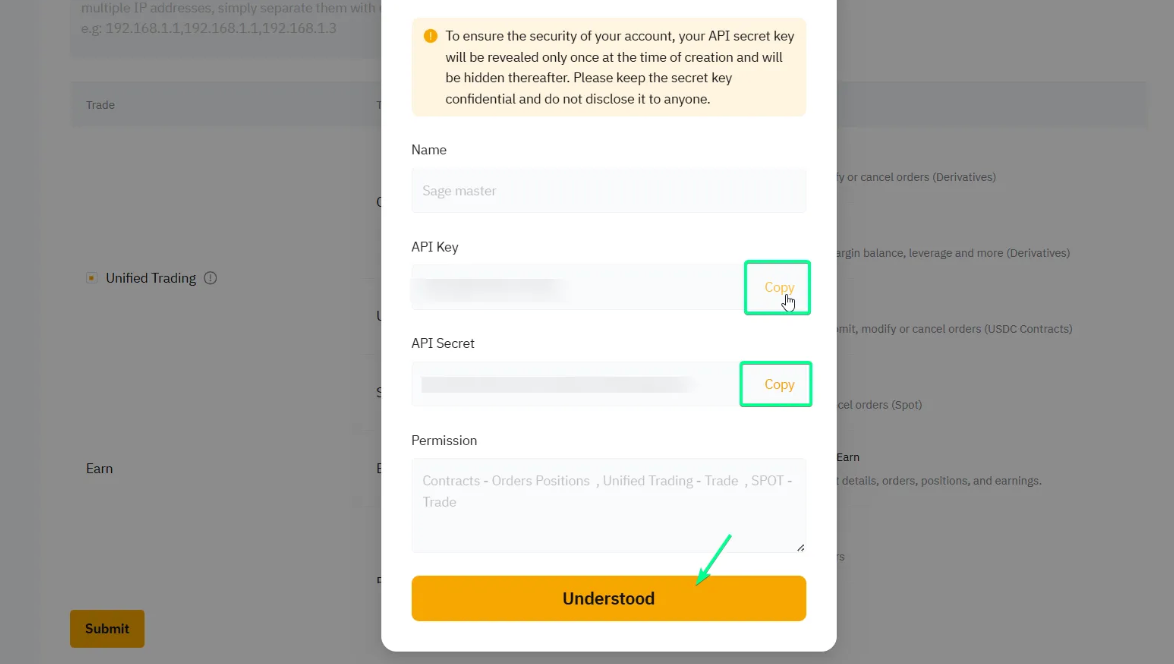
Congratulations! A new API Key is created. Copy and paste API Key and API Secret to connect to SageMaster.
Now go to your Sagemaster account and click “My Exchanges” in My settings section or in the Side menu
Click the “Connect Exchange”, select Spot tab, choose ByBit, and paste the private and public keys from Bybit into the fields provided.
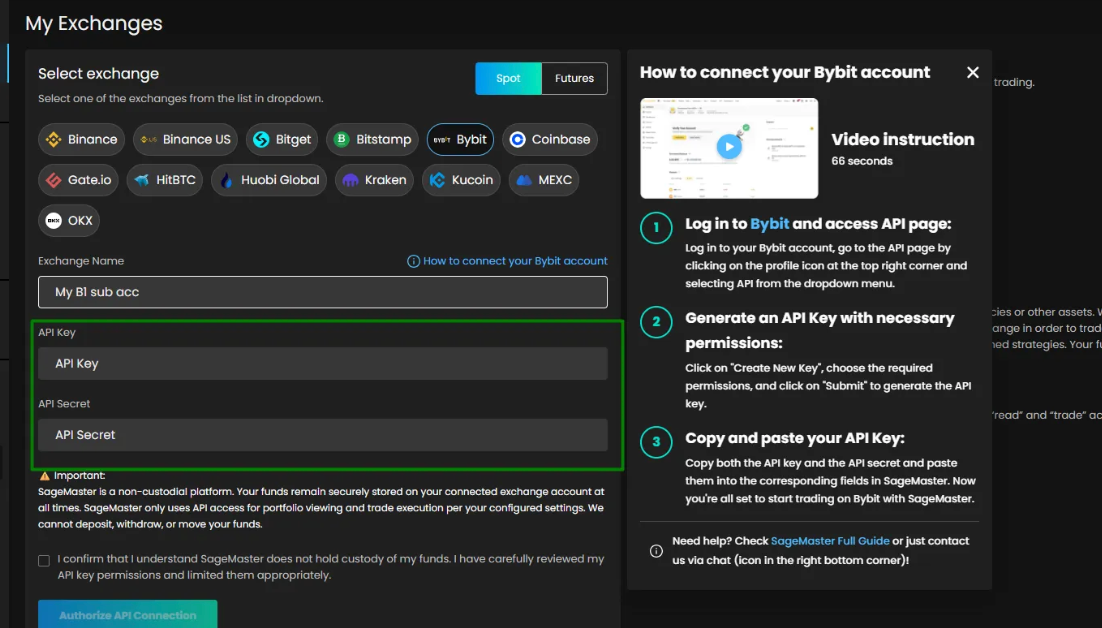
Click “Authorize API Connection” to finish connecting your Sagemaster account with ByBit.
What’s Next?
After connecting your accounts, you should make sure that your ByBit account is funded with the right currency.
Enable Futures
Creating a New API Key in ByBit
Log in to your ByBit account, Go to a profile icon at the top right corner, scroll down, and select API.
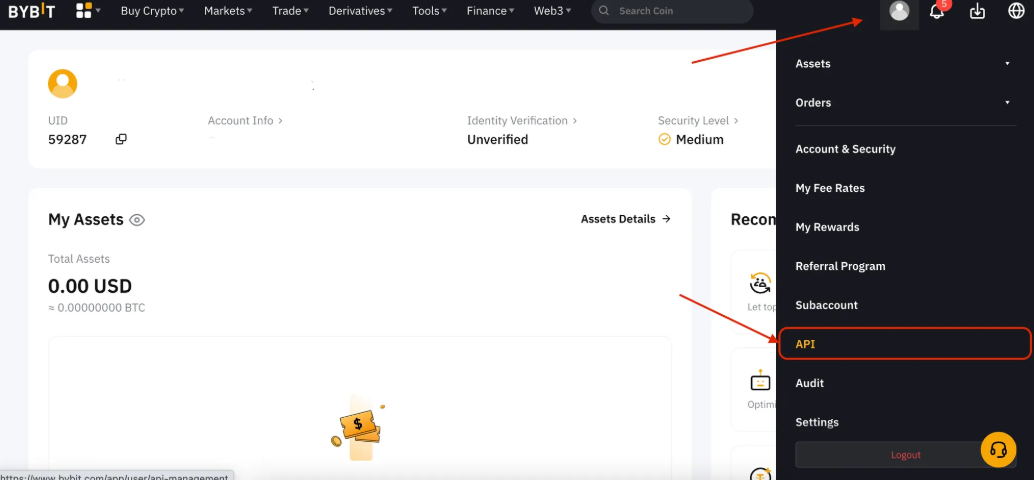
On API Management select Create New Key (see image): 1.

A pop-up screen opens, click on System-generated API Keys:
Select “API Transaction” as API Key Usage, enter a label for the API key (e.g. “SageMaster” and tick “Read-Write”; select “No IP restriction” in this section
Scroll down to the list of permissions
check the “Orders” and “Positions” permissions in the Contract block and “Trade” in the Spot block.
check USDC Derivatives Trading in USDC Contracts
Click Submit, complete your 2FA for verification.
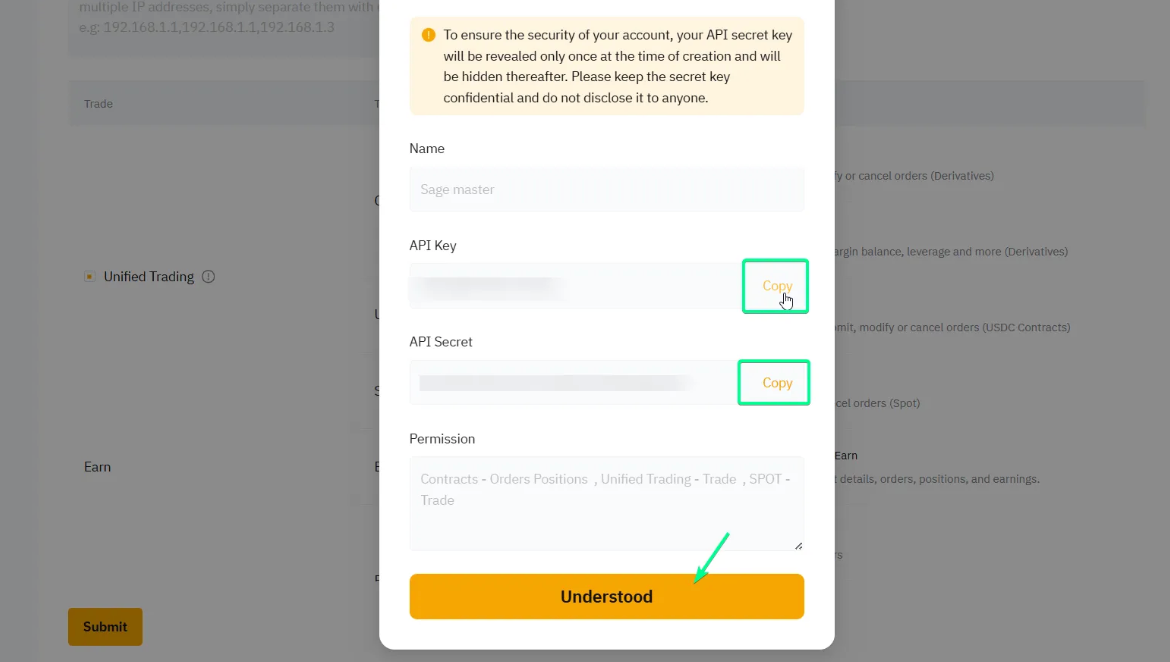
Congratulations! A new API Key is created. Copy and paste API Key and API Secret to connect to SageMaster.
Now go to your Sagemaster account and click “My Exchanges” in My settings section or in the Side menu
Click the “Connect Exchange” , select Futures tab, choose ByBit, and paste the private and public keys from Bybit into the fields provided.
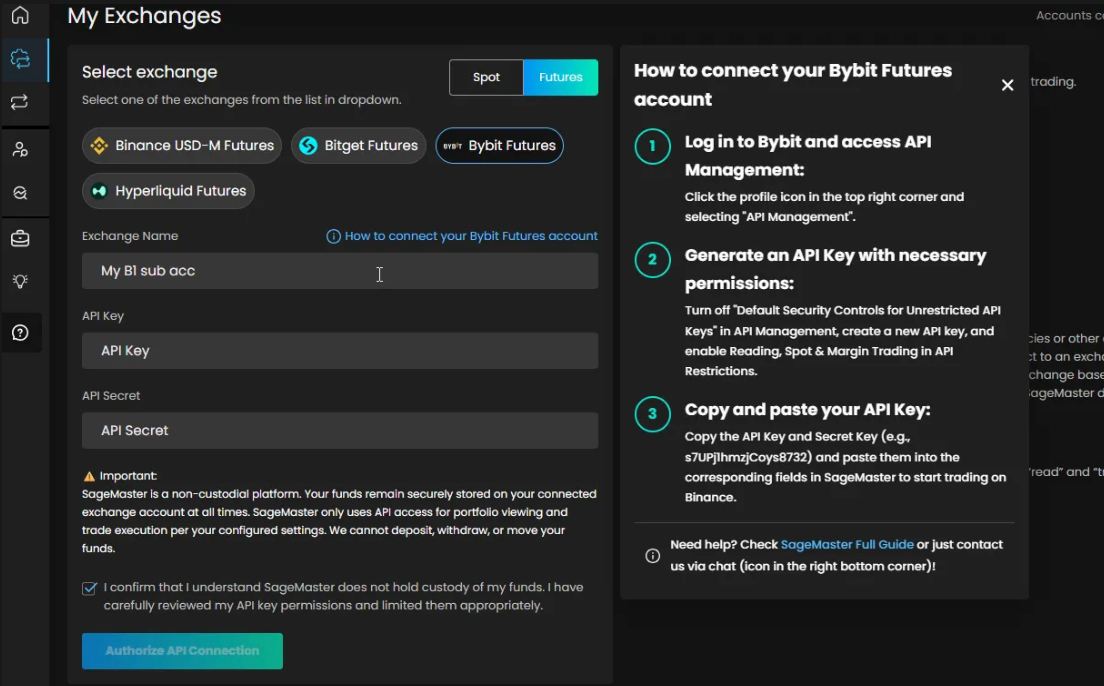
Click “Authorize API Connection” to finish connecting your Sagemaster account with ByBit.