How To Connect MEXC
Disclaimer: Trading involves significant financial risk and can result in substantial losses. Past performance does not guarantee future results. SageMaster does not provide financial advice. Users should ensure compliance with local regulations.
Written By Ehsaan XP
Last updated 7 months ago
How to Add Mexc to SageMaster
This guide explains how to create and add your Mexc account to SageMaster
Creating a New API Key in MEXC
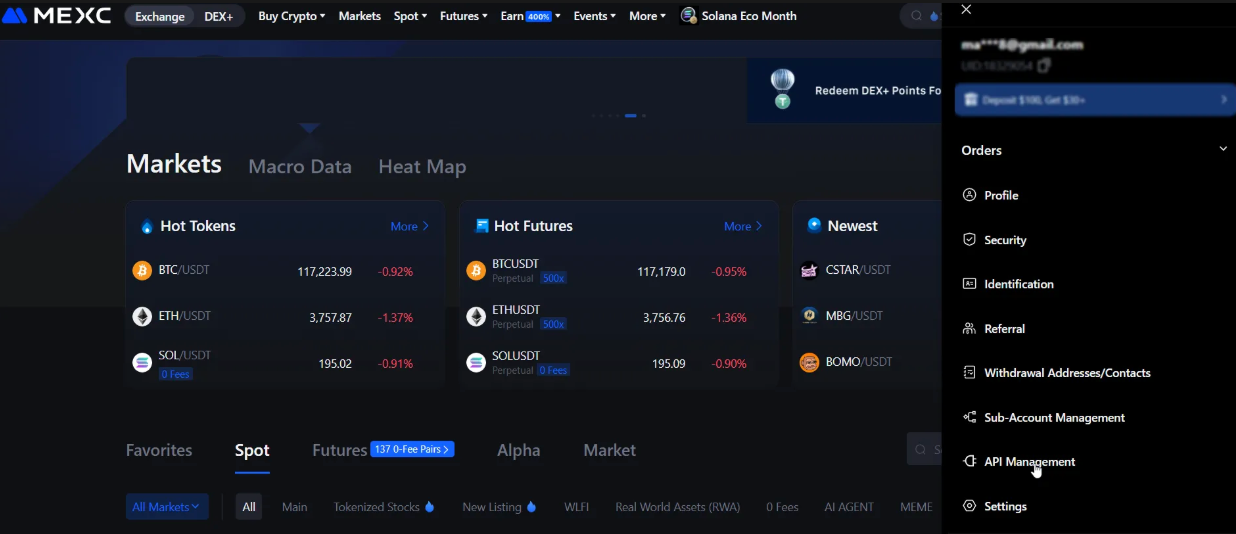
Log in to your MEXC account and go to the API Management page from the profile dropdown in the top-right corner.
In the Notes field, enter a name or a short description for your API key (e.g.,
SagemasterorSGM KEY).Leave the IP whitelist field empty unless you want to restrict access to specific IPs (optional but not recommended unless you know the IP).
Set permissions according to your usage.
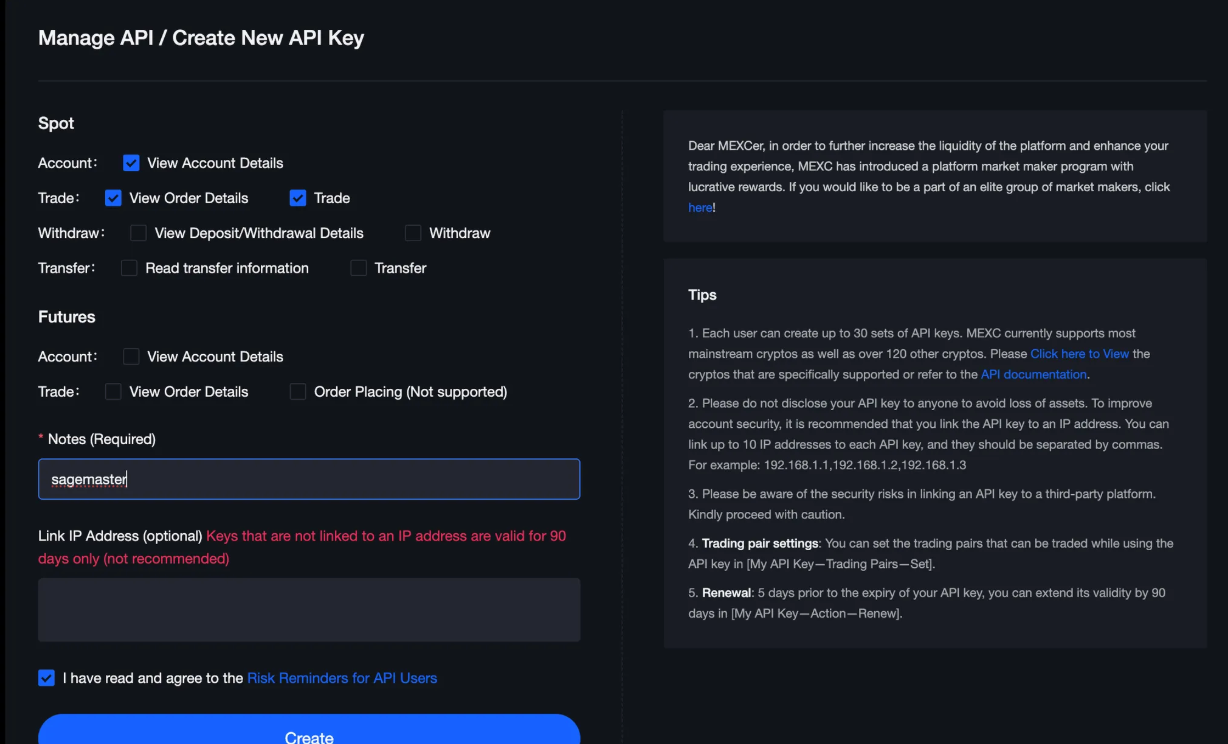
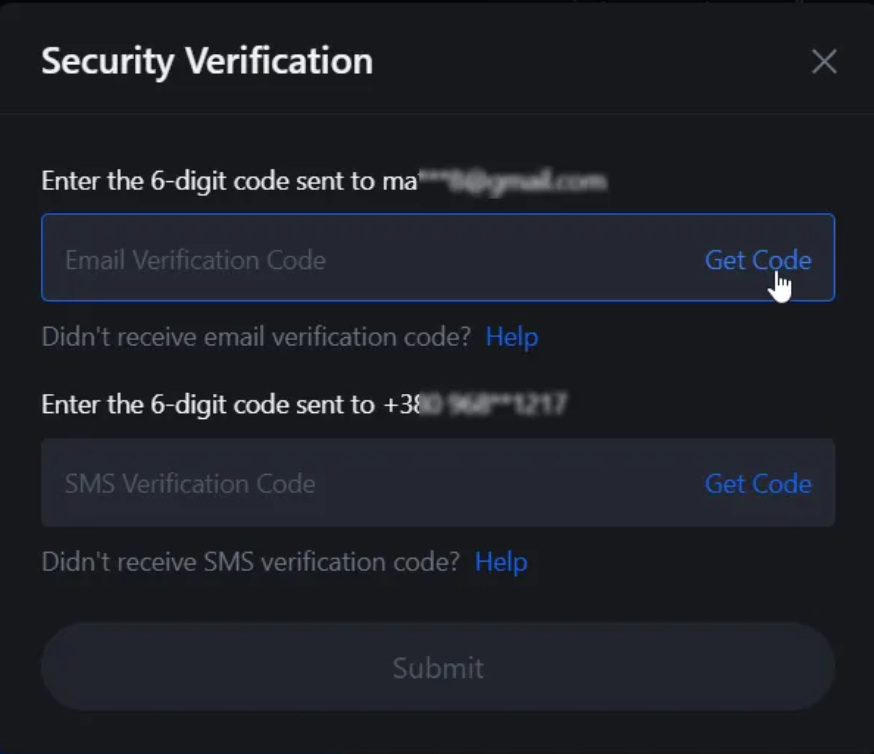
Check Risk Disclaimer Consent Checkbox, click “Create” and follow the security verification steps
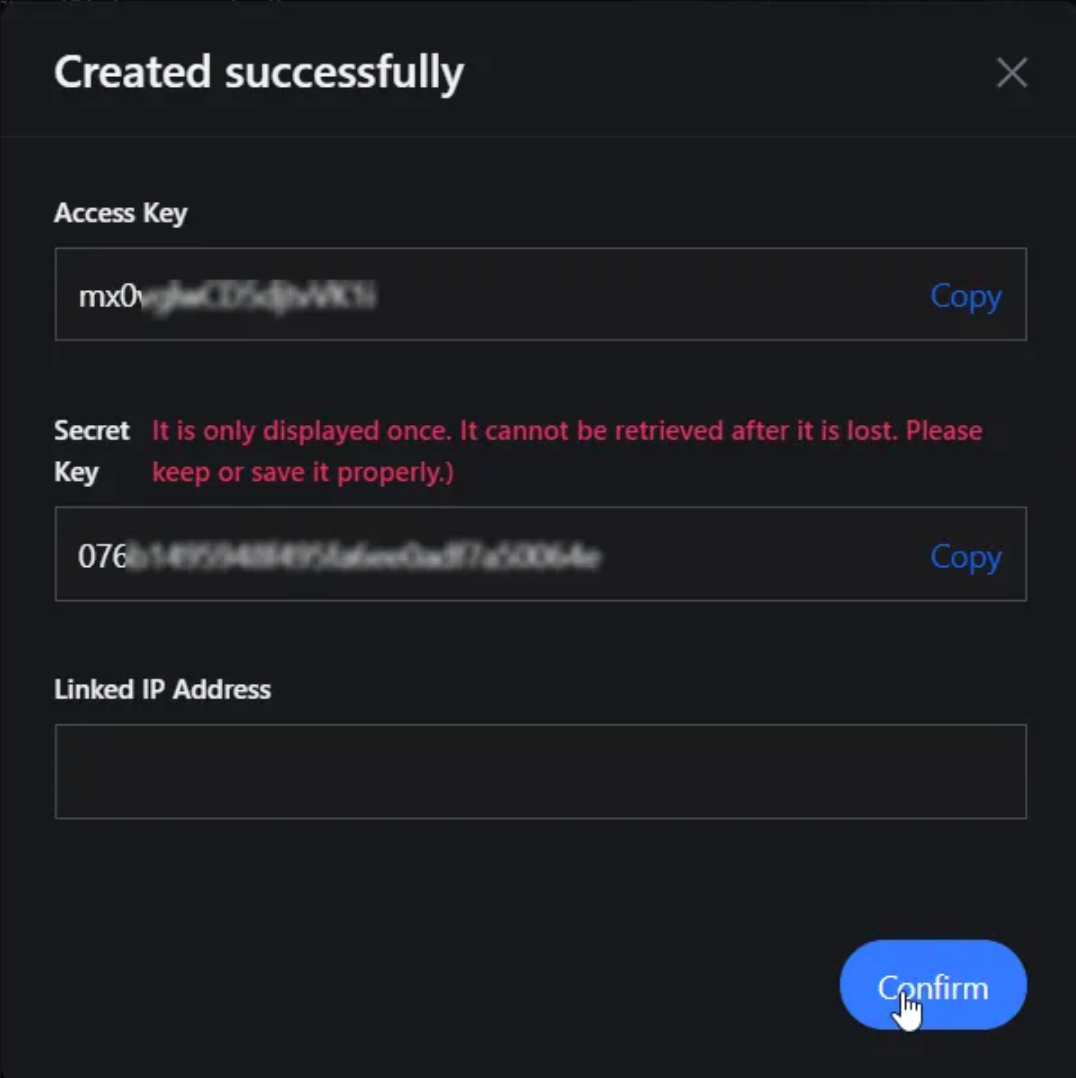
Your API Key and Secret Key will now be shown.
⚠️ Copy and store them immediately — the secret key will be hidden after you leave the page.
Connecting MEXC to Sagemaster
In your Sagemaster account, click “My Exchanges” from the top-right menu.

Paste the API Key and Secret Key from MEXC into the appropriate fields.
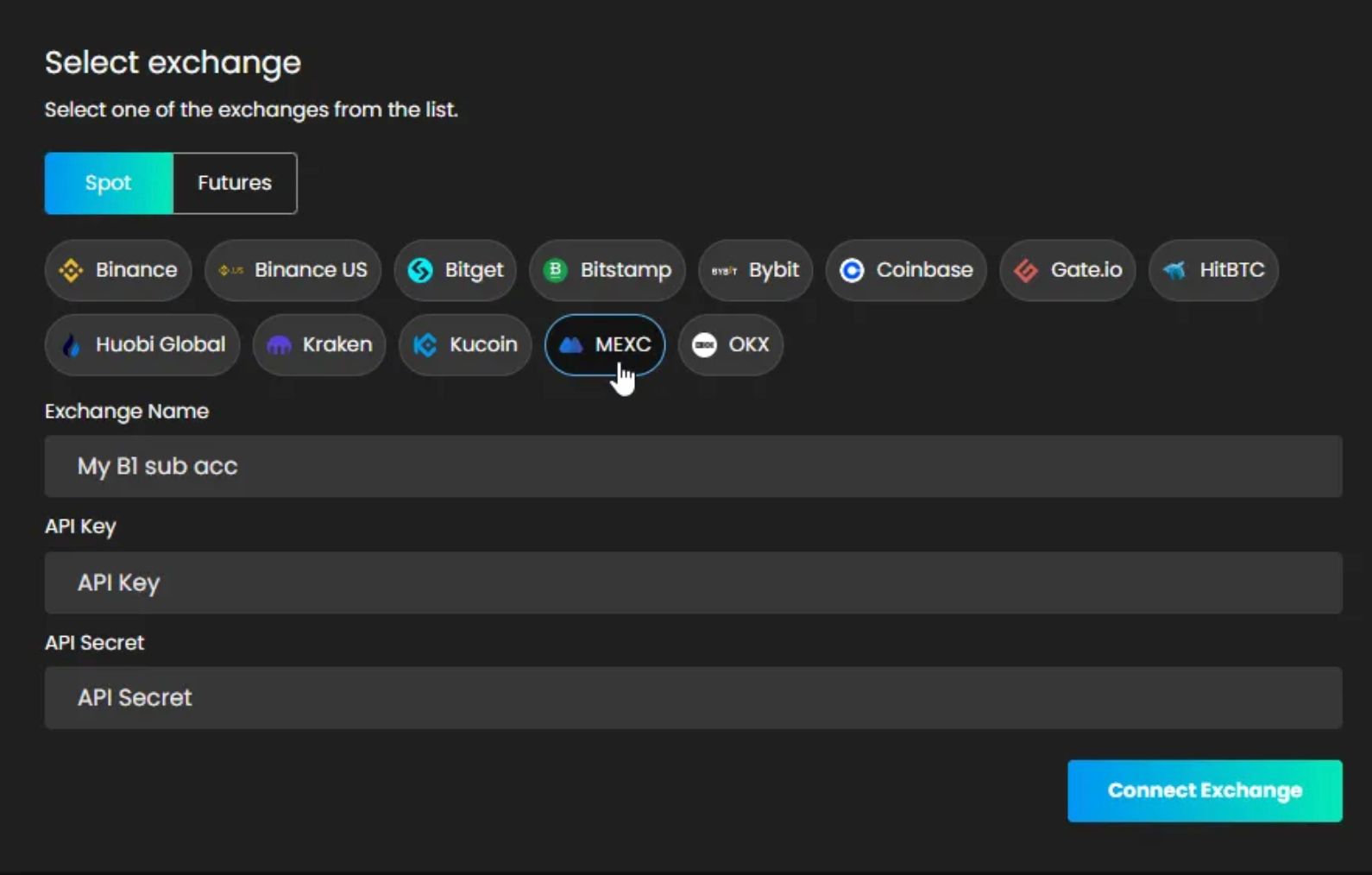
Click “Authorize API Connection” to finish connecting your Sagemaster account with Mexc. Once connected, your Spot balance will be synced with Sagemaster based on the permissions granted.