Rebalancing After Edit
Written By Ehsaan XP
Last updated 7 months ago
Important Considerations
💡 Before making changes, please note:
Modifying certain settings will reset your profitability statistics
Some changes require cancellation of existing orders
If you want to preserve statistics, consider creating a new Assist instead
Settings You Can Edit Without Canceling Orders
Trailing up
Trailing down
Downward Price Protection (on/off)
Lower Stop Price
Upper Stop Price
Start/Stop Trigger Conditions
Add/remove Upper Grid Level
Add/remove Lower Grid Level
Settings That Require Order Cancellation
💡 The following changes will cancel existing orders and create new ones:
Trading capital
Lower limit price
Upper limit price
Grid quantity
Non-Editable Settings
💡 These settings cannot be modified after creation:
Exchange
Trading pair
Geometric/Arithmetic grid type
Profit currency
Editing your Grid AI Assist
Step 1. Click the Assist details of the running Grid
Step 2. Look for and click the "Edit" button

Step 3. Modify your desired settings
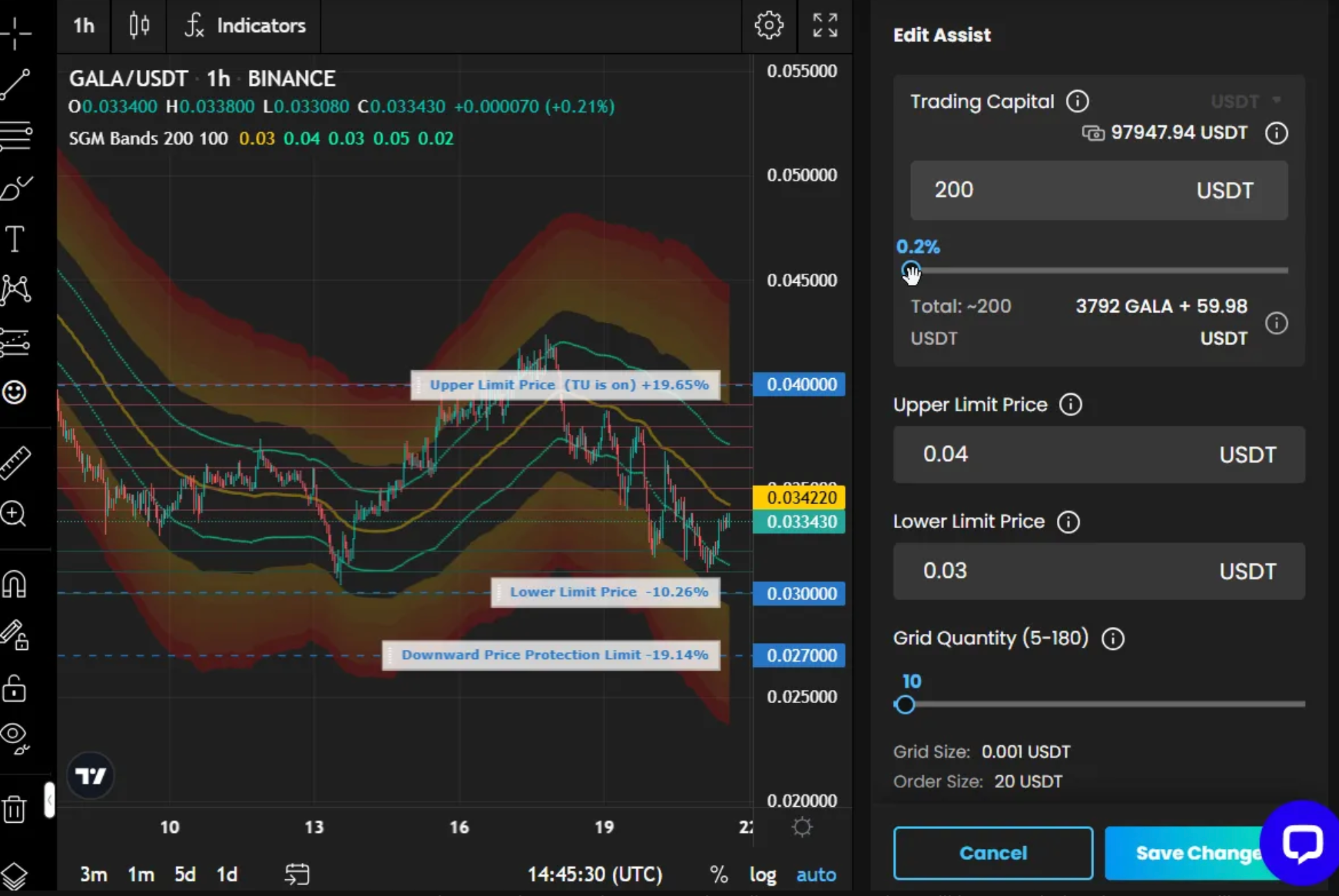
Step 4. Click “Save changes” button
If you edit any of these fields, a confirmation popup will appear warning that your profit statistics will be reset. If you want to proceed with the new settings, click the "Save changes" button. Please note that all your open orders will be canceled and new ones will be placed
Trading capital amount
Lower limit price
Upper limit price
Grid quantity
If your current profit statistics are important, cancel the settings changes by clicking the "Cancel" button
Step 5. That's it! Your Grid AI Assist is now updated and continues to run without needing to cancel orders or start a new Assist.
After Editing
When changes are saved:
For non-canceling changes: Your grid will continue operating with the new parameters
For order-canceling changes: Your grid will close open orders and place new orders based on the updated settings, due to this unrealized profit, Current market value and Total profit will reset
A new event message will appear in your history: "GRID Assist edited. New orders created"
💡 Remember: If you want to preserve your current statistics and avoid order cancellations, it's recommended to create a new Assist instead of editing an existing one.
Example
User has a running Grid AI assist with the following settings:
Step 1. Click the Assist details of the running Grid
Step 2. Look for and click the "Edit" button
Step 3. Edit some of the fields as following
BEFORE
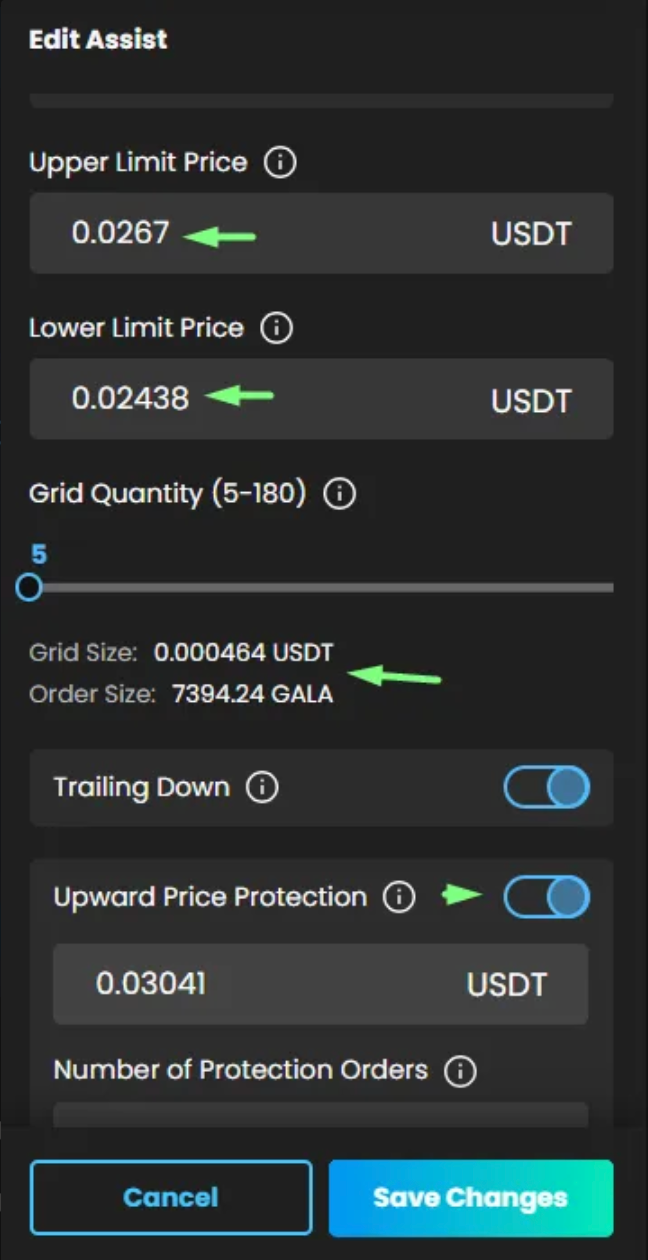
AFTER

Step 4. Save updated settings by clicking “Save Changes” button
Step 5. On Balancing popup click “Proceed” button
After Editing:
When changes are saved:
BEFORE
Profit

Orders

AFTER
Profit

Orders

Events

💡 Note: Changes made to any of the fields below RESET profit statistic
Trading capital
Lower limit price
Upper limit price
Grid quantity
Disclaimer: Trading involves significant financial risk and can result in substantial losses. Past performance does not guarantee future results. SageMaster does not provide financial advice. Users should ensure compliance with local regulations.