How to Сonnect HyperLiquid
This guide explains how to create and add your Hyperliquid account to SageMaster
Written By Ehsaan XP
Last updated 3 months ago
Prerequisites
Before starting, ensure you have:
A browser wallet (e.g., OKX Wallet ) set up with ETH for gas on Arbitrum .
Stable Tokens (e.g. USDC) on the Arbitrum chain.

Ensure you have made a deposit into your Hyperliquid account
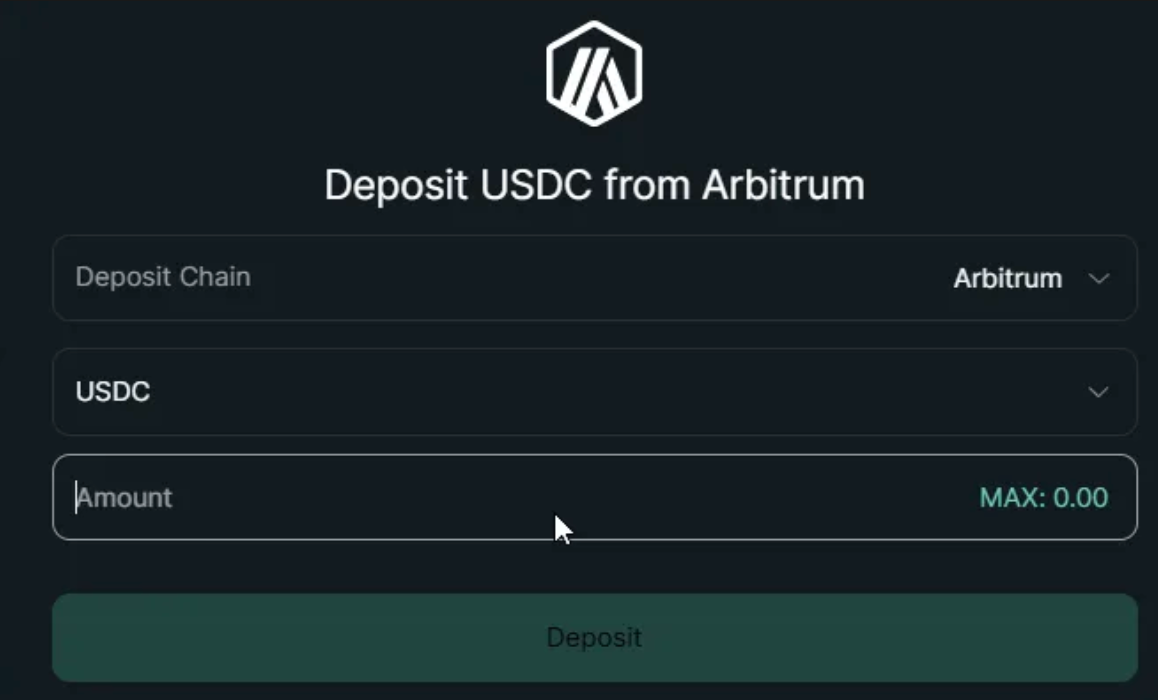
If you already have a Hyperliquid Account with USDC deposited, skip to Connecting Hyperliquid API keys
Connect your exchange
How to generate API Keys on Hyperliquid
Log in to your Hyperliquid account, click "More" in the header, and select "API": You'll be taken to the API key generation page, where you can create the API key and API Secret needed to connect your Hyperliquid account to Sage Master

Enter a name for your agent wallet (e.g., "My Hyperliquid") and click Generate. An API wallet address will be generated. You DON’T need to save this address since it WON’T be used to connect your Hyperliquid account to Sage Master.

Once it is generated, click “Authorize API Wallet”.

In the popup that appears,you'll see
API Wallet Name - the name you entered in step 2.
API Wallet Address - the address generated when you clicked "Generate." (no need to save it)
Days valid - specify how long you want your API keys to remain active.
your Private Key - copy and save this key—it will be your API secret in Sage Master
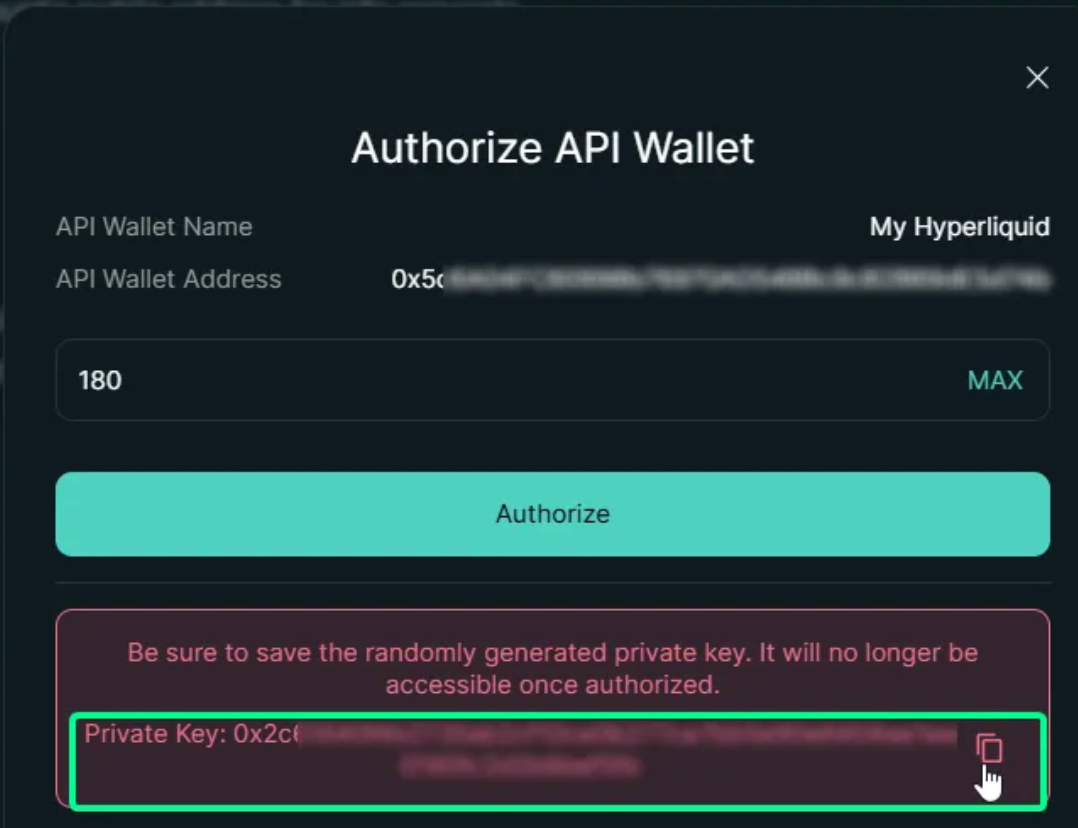
After entering the Days Valid value and saving your Private Key, click "Authorize."
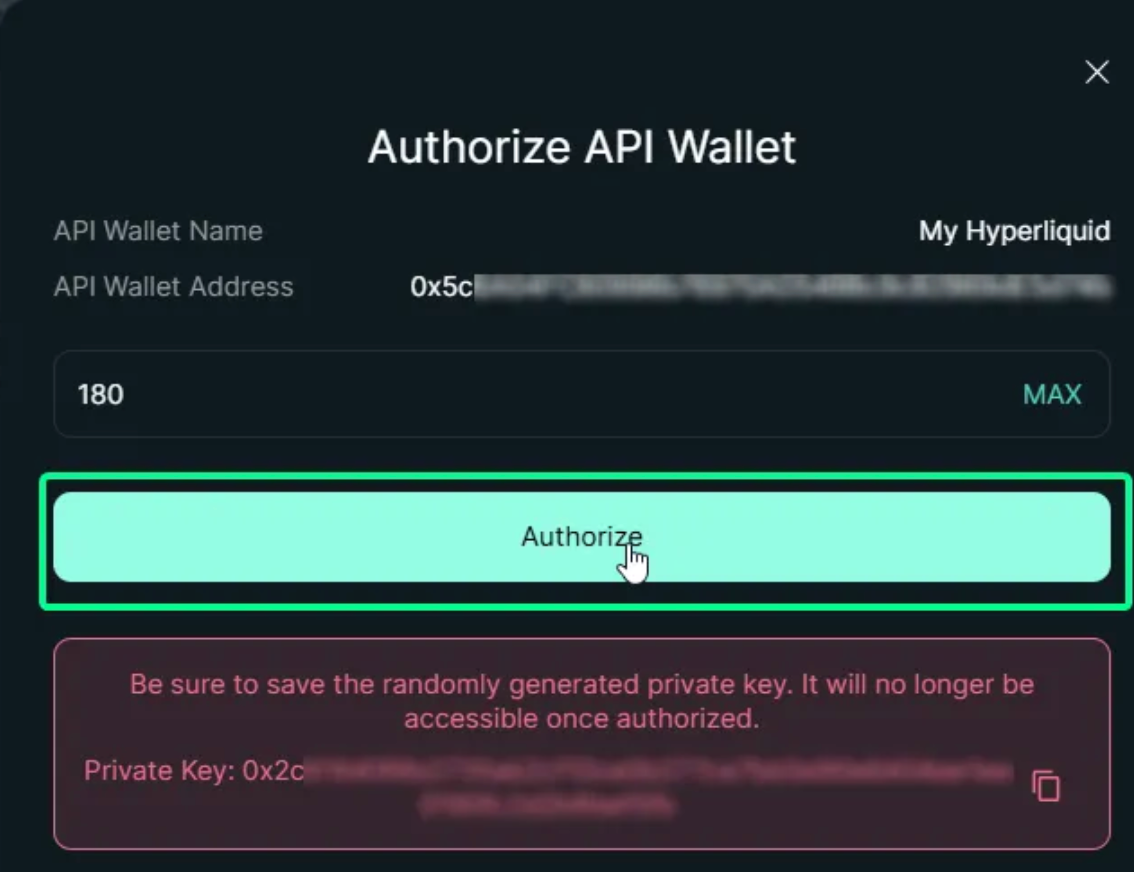
Your wallet will prompt you to finish authorization.
copy the "Wallet Used" address—this will be your API Key on Sage Master
If You don’t see the “Wallet Used” - copy the address from the Header page
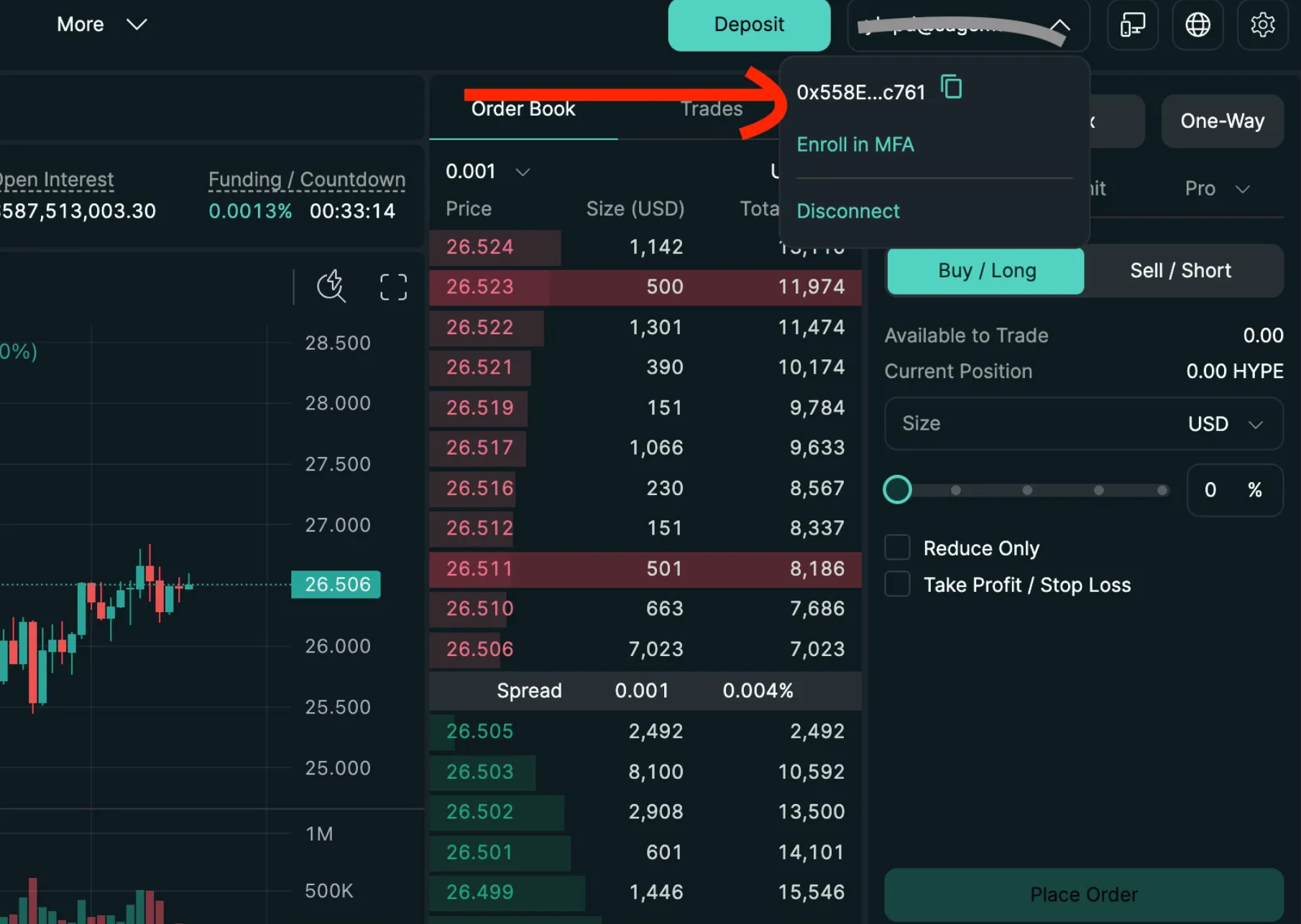
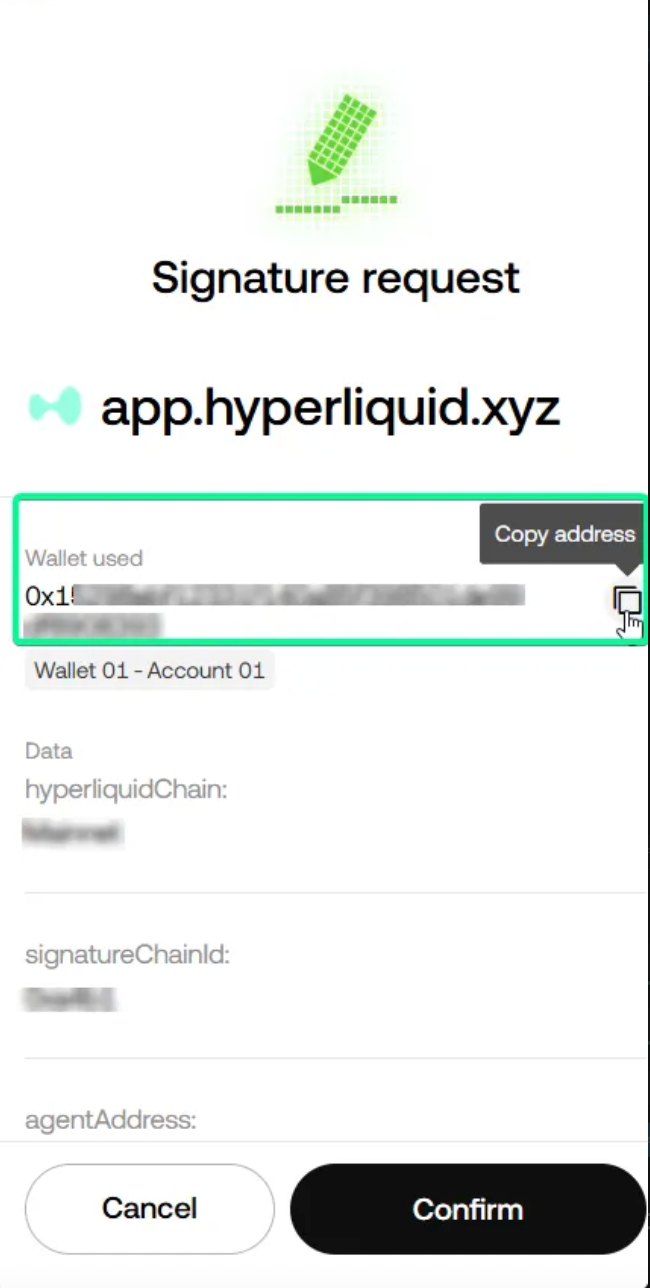
Once your "Wallet Used" address is saved, click "Confirm" to finalize API key generation
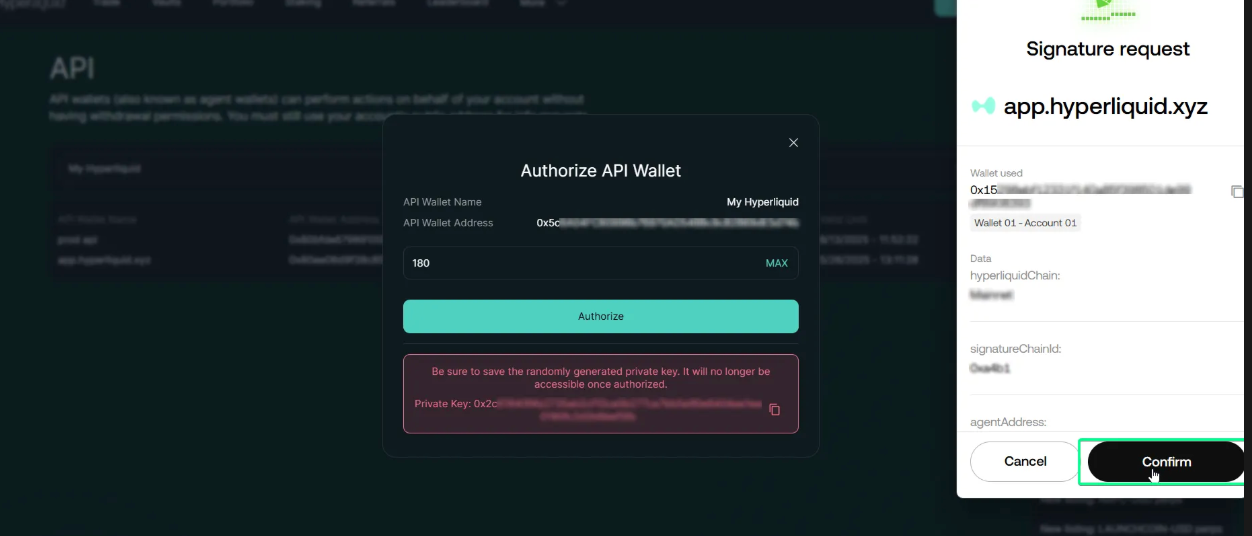
Your API keys are now generated and ready to be used with Sage Master
To connect Hyperliquid to SageMaster, you need to:
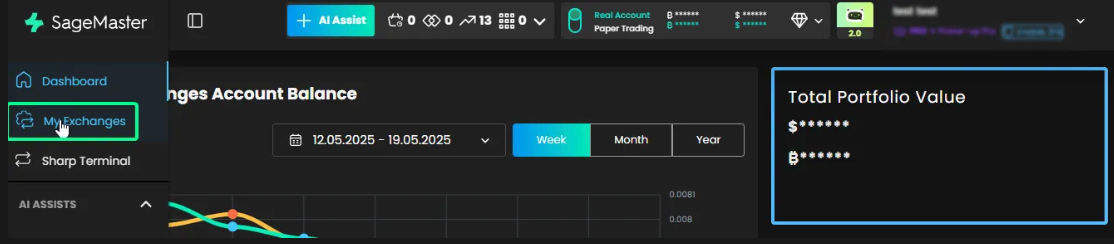
Navigate to your Sage Master account and click "My Exchanges" in the sidebar
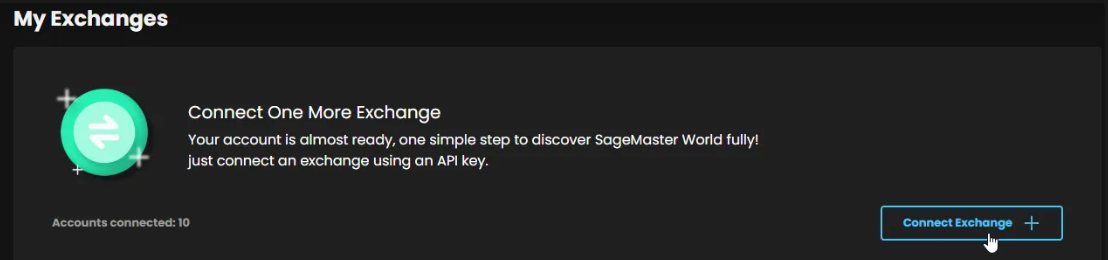
Click the "Connect Exchange" button
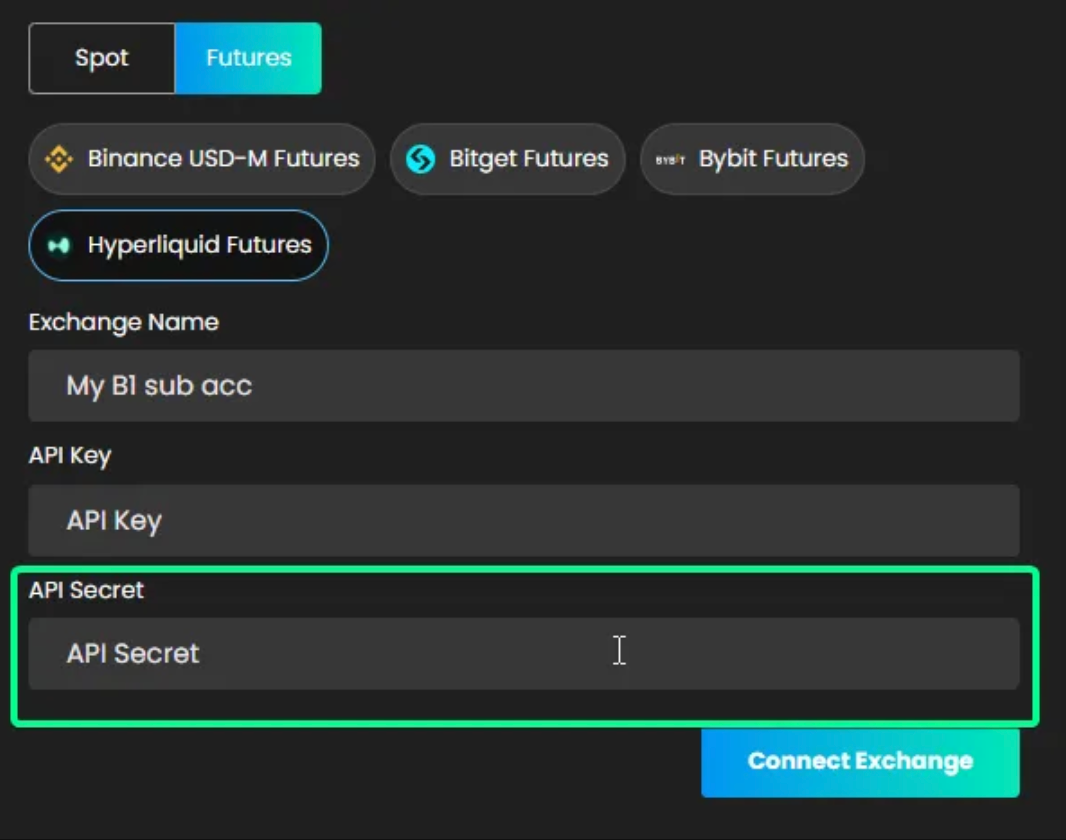
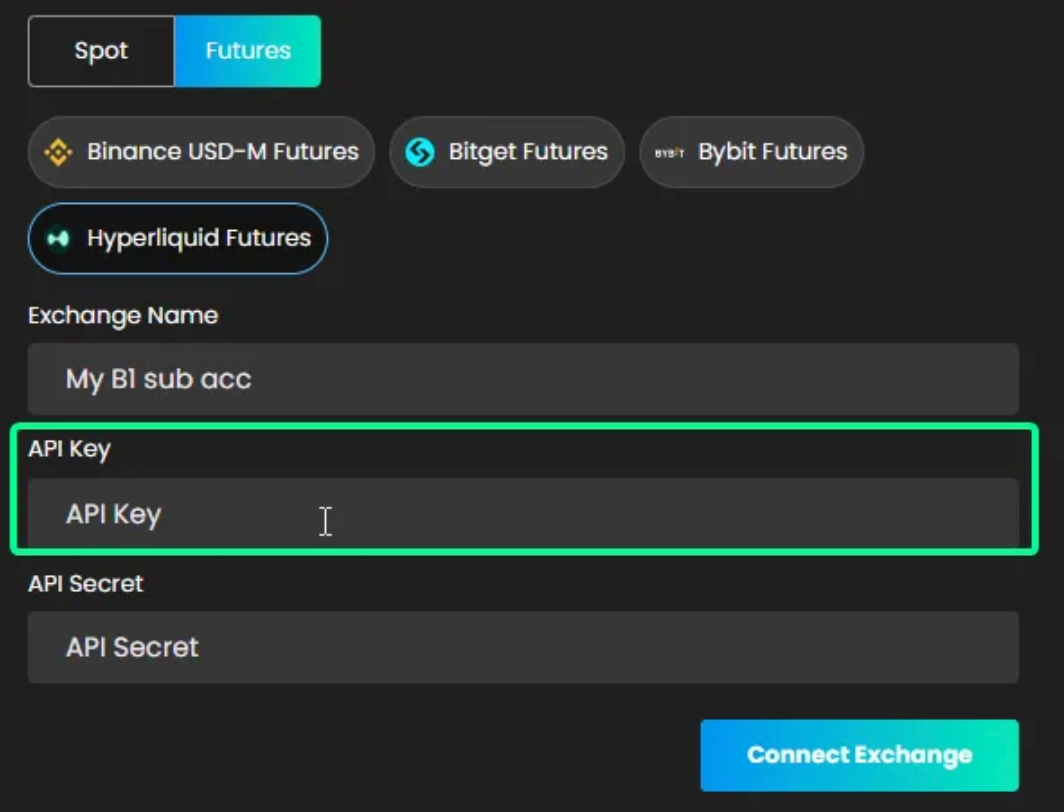
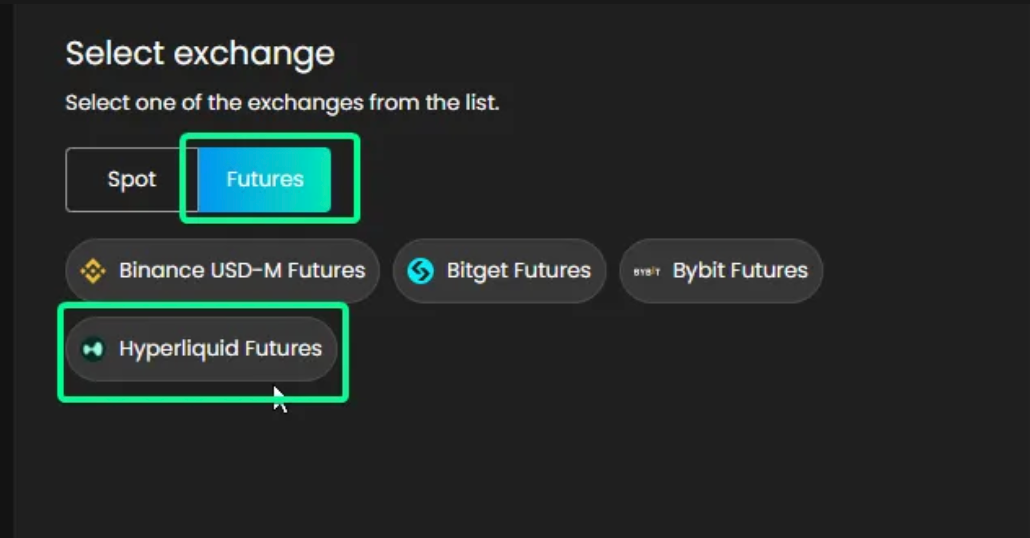
Switch to Futures tab, and select Hyperliquid Futures
Create a distinctive name for your Hyperliquid exchange in Sage Master
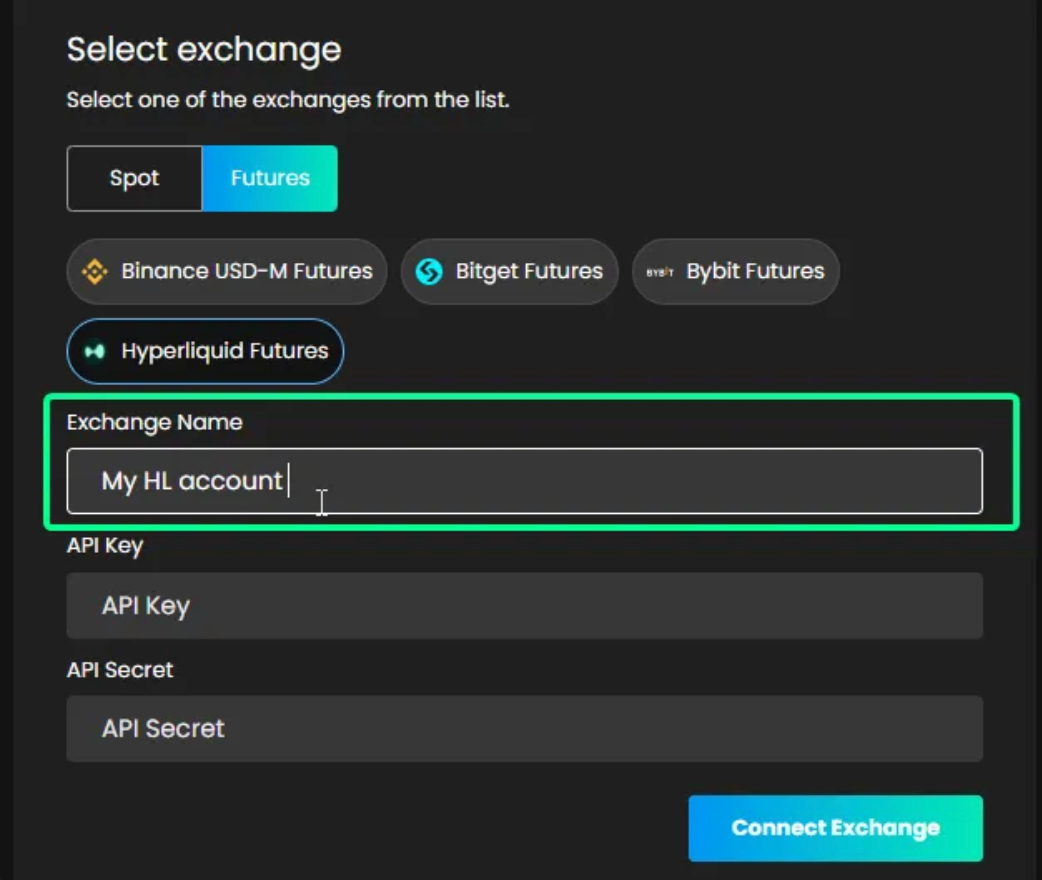
Paste the Wallet Used address you saved earlier into the API Key field
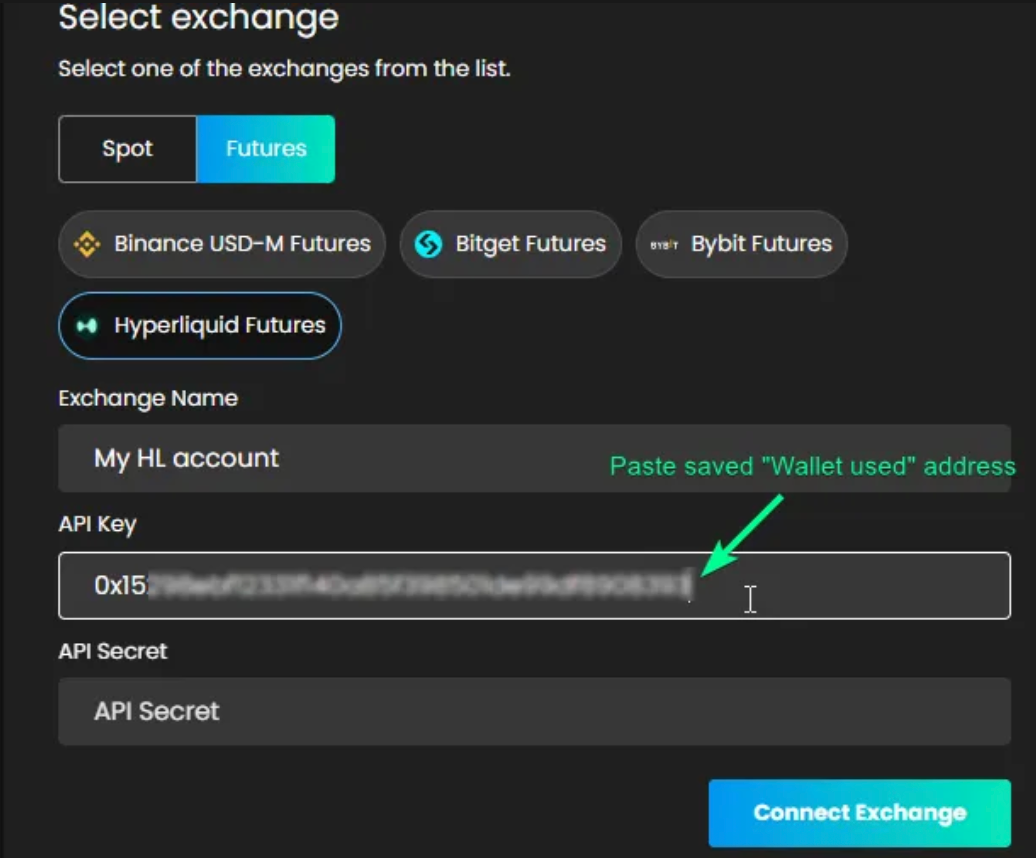
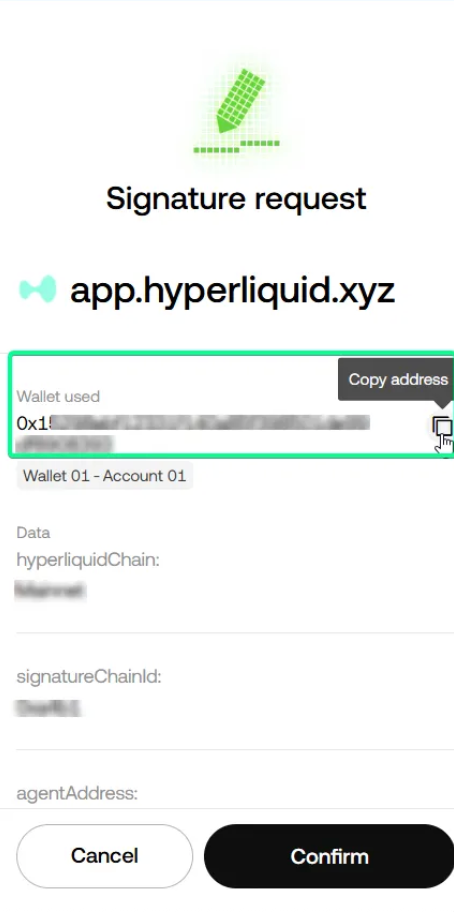
If you've lost your "Wallet Used" address, you can find it in the header on the Hyperliquid exchange. Copy and paste it into the API Key field

Paste the Private Key you saved earlier into the API Secret field
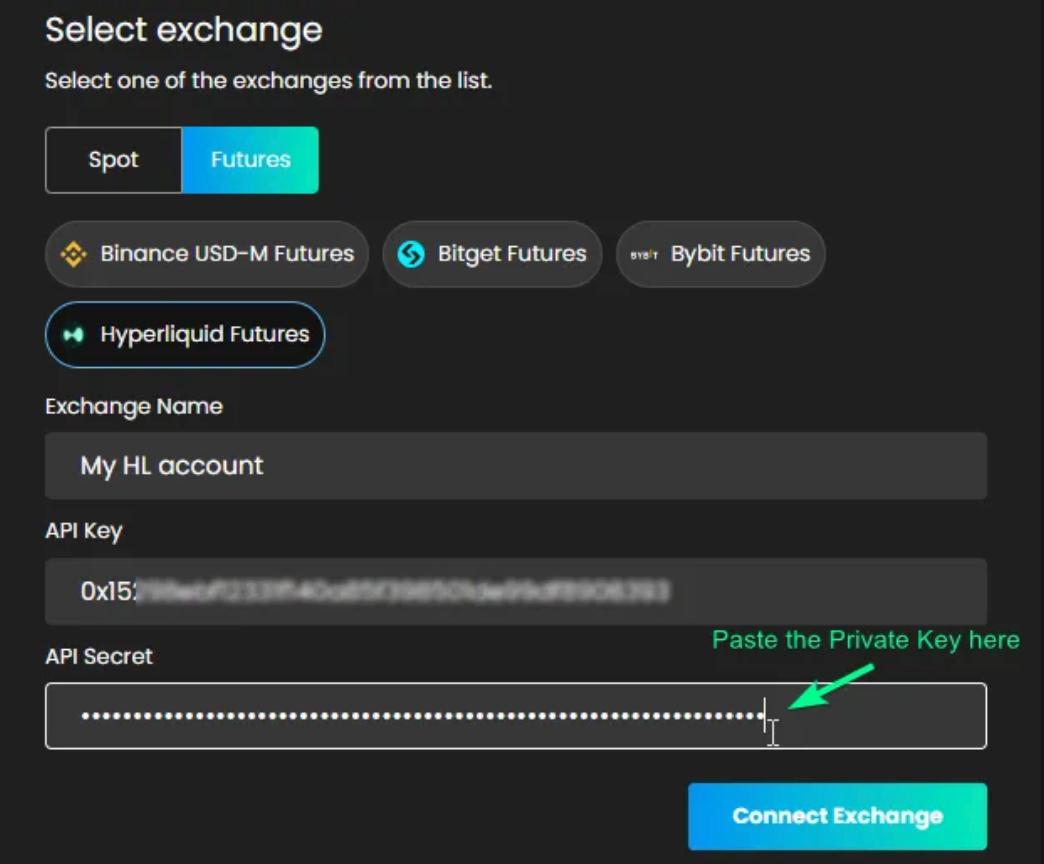
Click the "Authorize API Connection" button
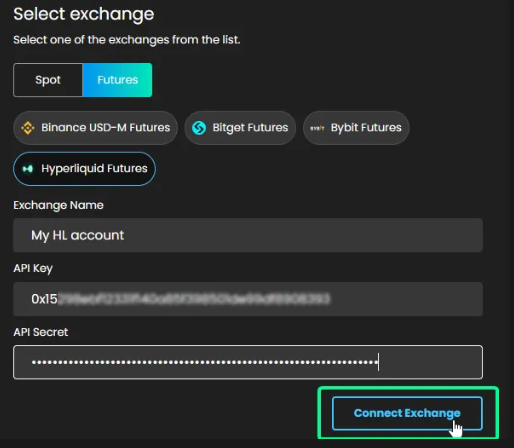
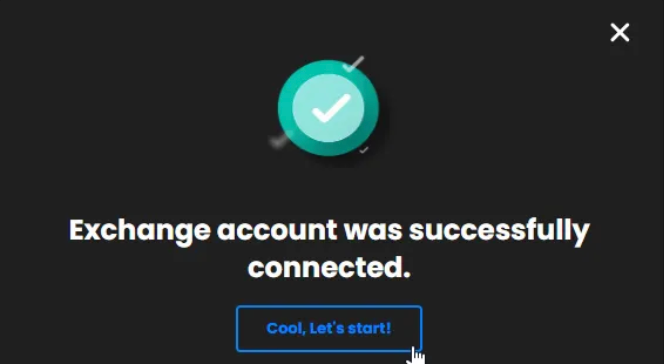
Your Hyperliquid Futures exchange is now successfully connected to your Sage Master account
Disclaimer: Trading involves significant financial risk and can result in substantial losses. Past performance does not guarantee future results. SageMaster does not provide financial advice. Users should ensure compliance with local regulations.