How To Connect Kucoin Exchange
Disclaimer: Trading involves significant financial risk and can result in substantial losses. Past performance does not guarantee future results. SageMaster does not provide financial advice. Users should ensure compliance with local regulations.
Written By Ehsaan XP
Last updated 7 months ago
Watch the video to learn how to connect Kucoin exchange to SageMaster.
Prerequisites
Before you begin, ensure that you have the following prerequisites:
You’ve got a SageMaster account
You have a Kukoin account
Connect Your Exchange
Creating a New API Key in Kucoin
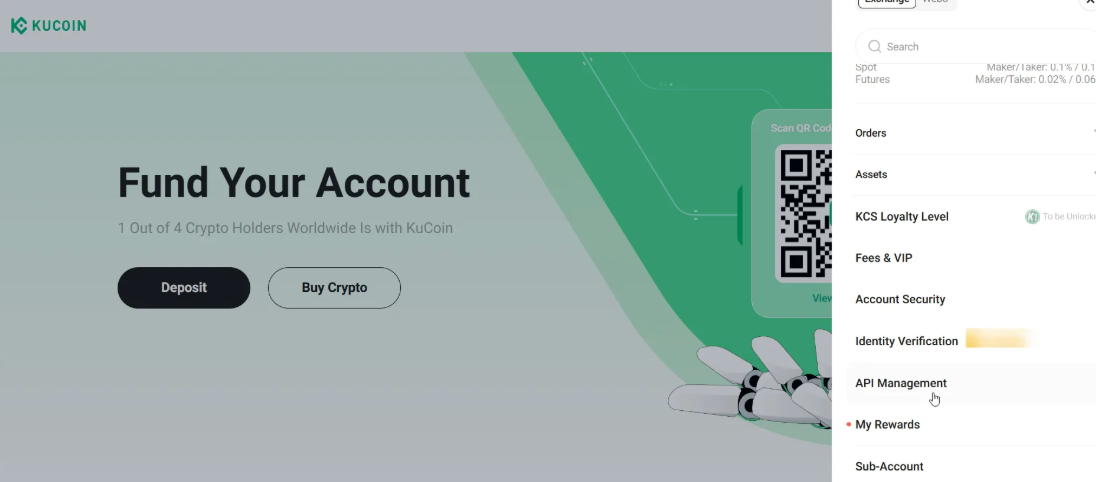
Log in to your Kukoin account, click on ”Manage Account” and go to the “API Management” page.
a.
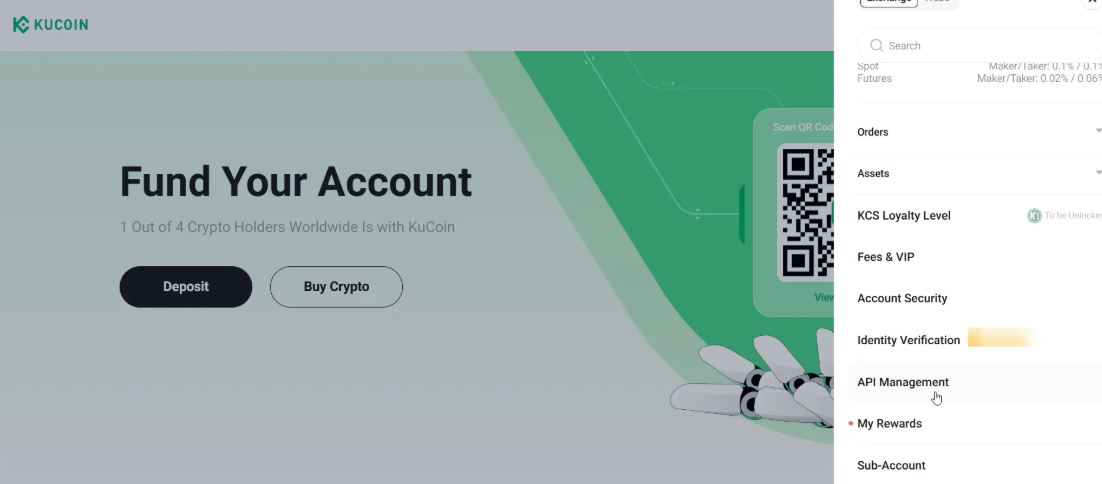
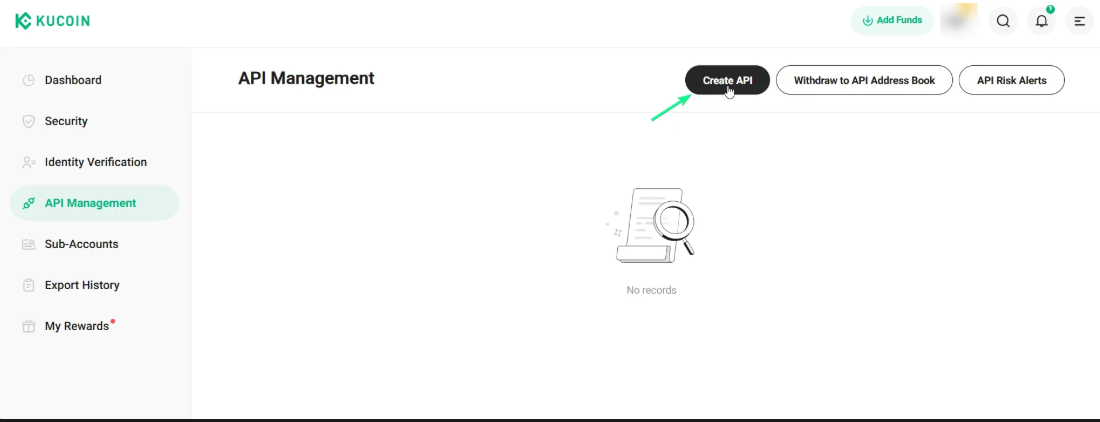
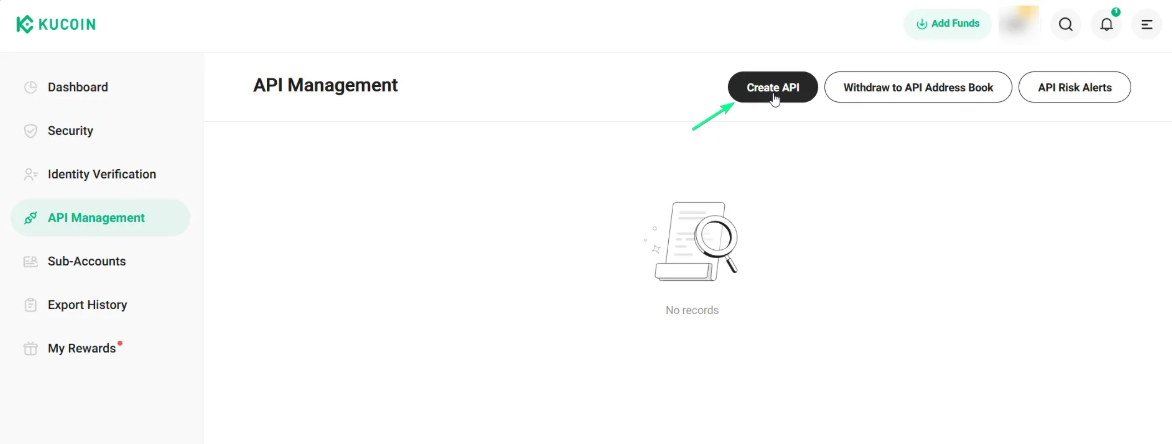
Select “Create API” on the page
a.
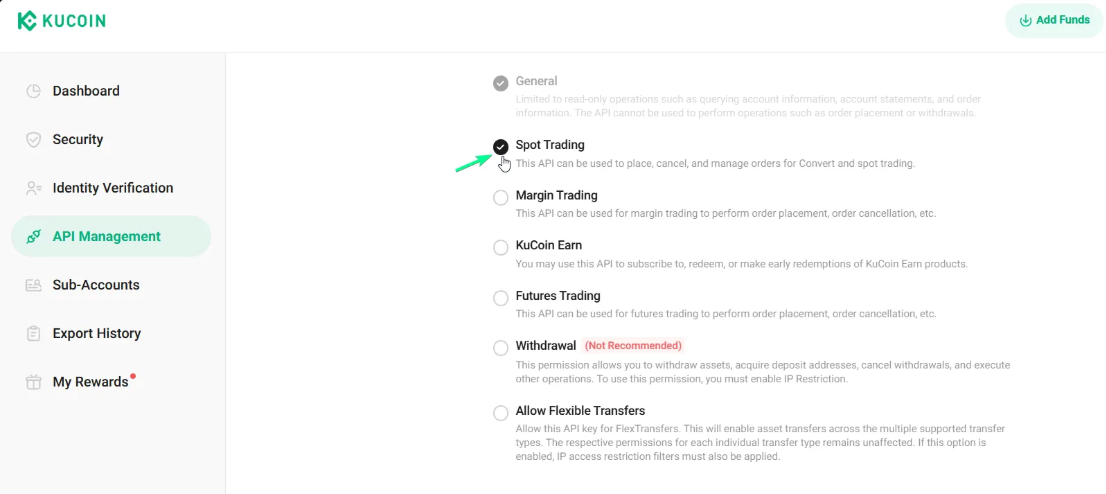
Give permission to “Trade” as shown in the image.
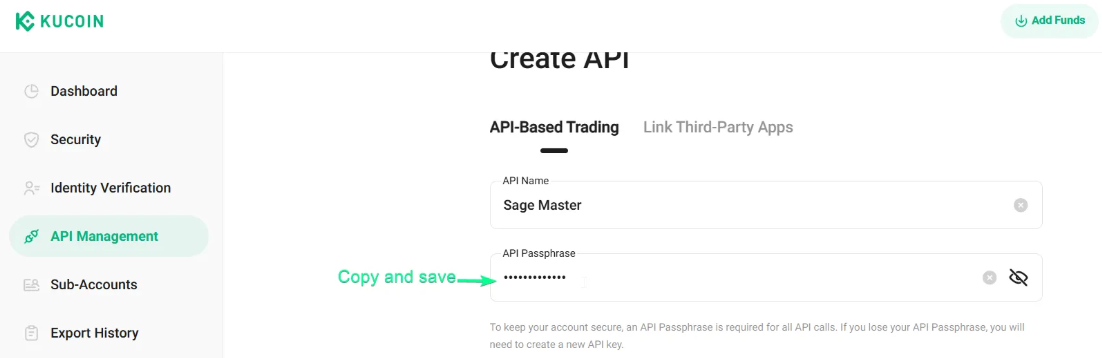
Enter a label for the API key. Example “SageMaster2”.
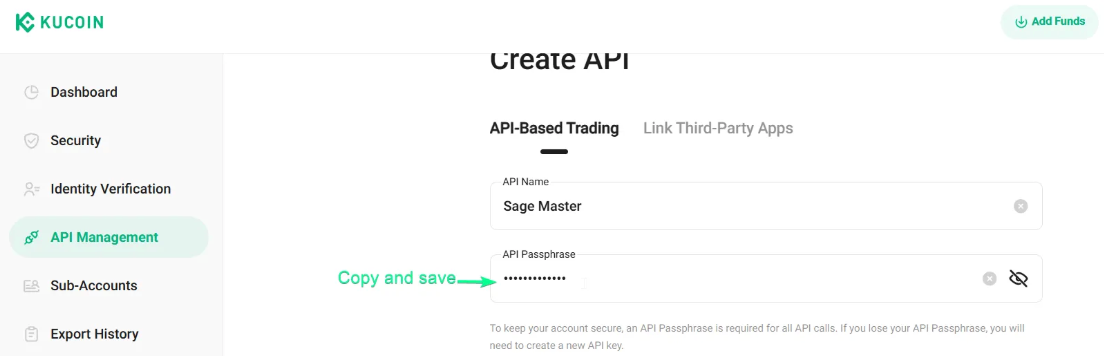
Enter an API Passphrase for this exchange. Copy the “API Passphrase” and save.
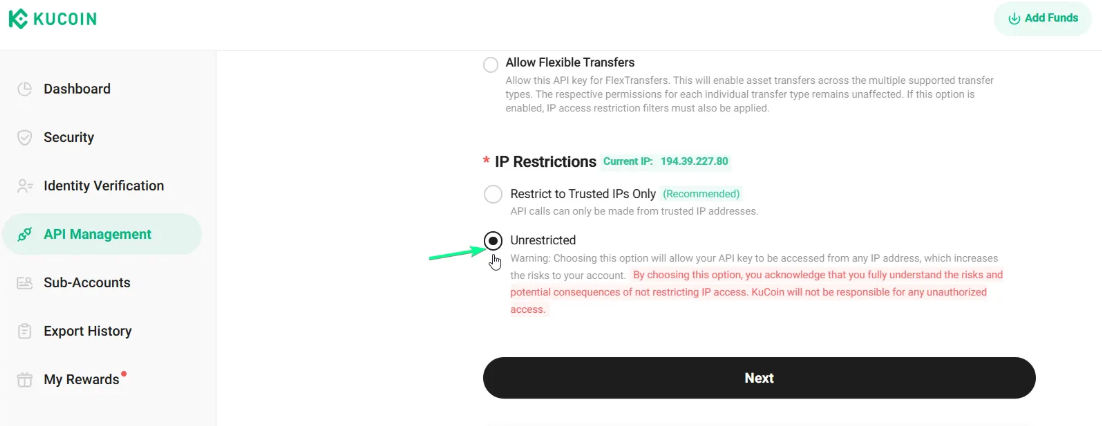
c. Select “Unrestricted” option in “IP Restrictions” section then click “Next”
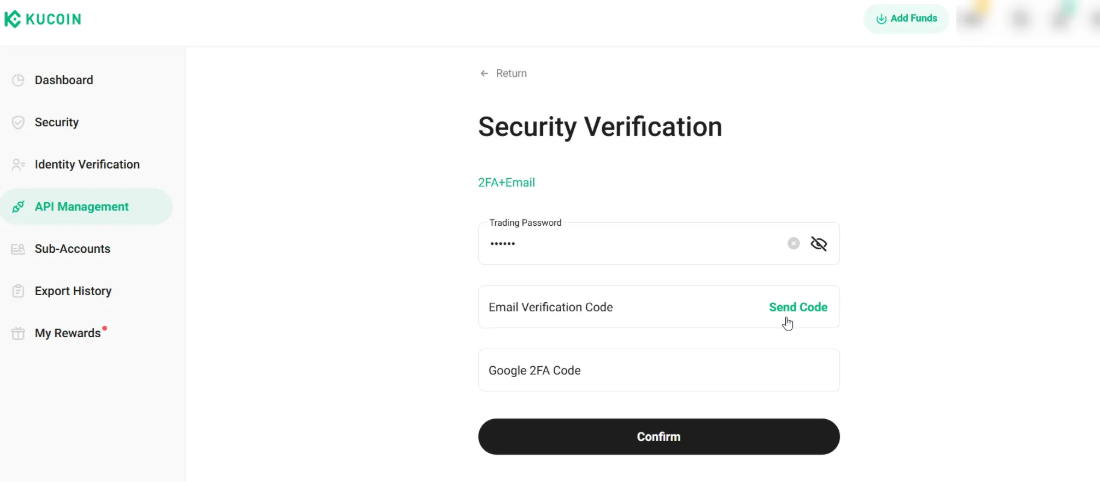
Confirm Two-factor Authentication.
After you complete the steps, a new API Key will appear in a popup window. You'll need to copy and save API Key and Secret. Once they are saved, click Confirm
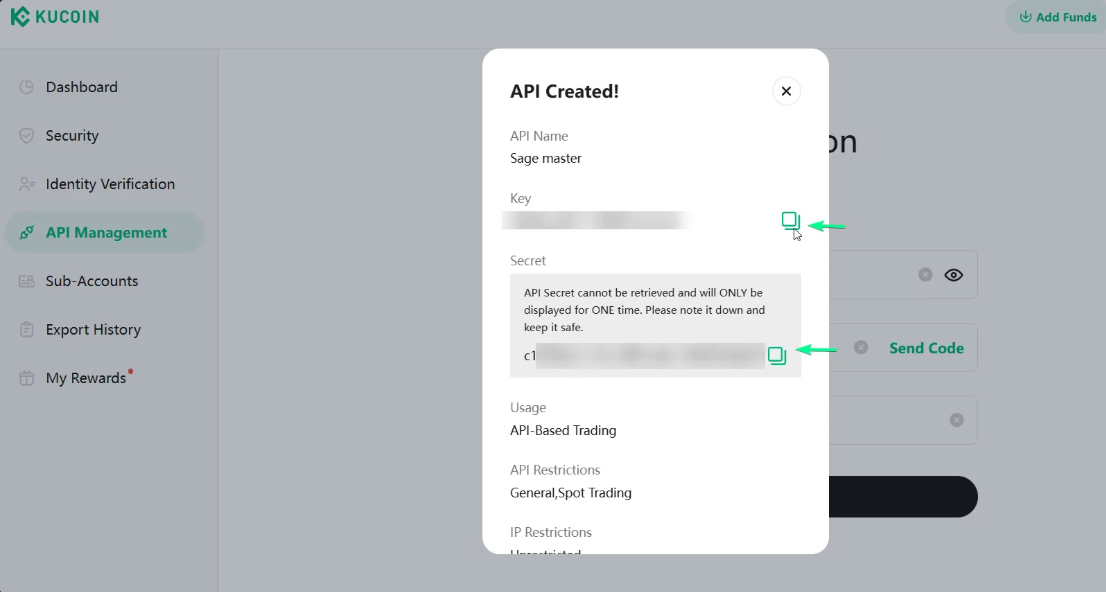
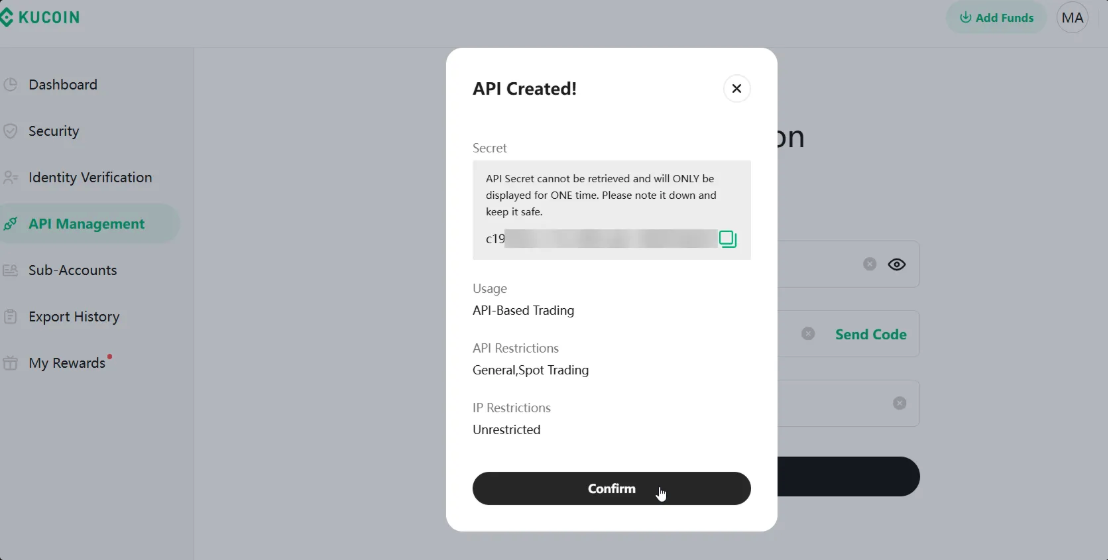
Your new API key has been created. Now you can copy your API Key and Paste it to SageMaster.
To paste your API Key on SageMaster, go to your Sagemaster account and click “My Exchanges” in My settings section or in the Side menu
Click the “Connect Exchange” button, select Spot tab, choose Kucoin, and paste the API key, API Key secret and Passphrase
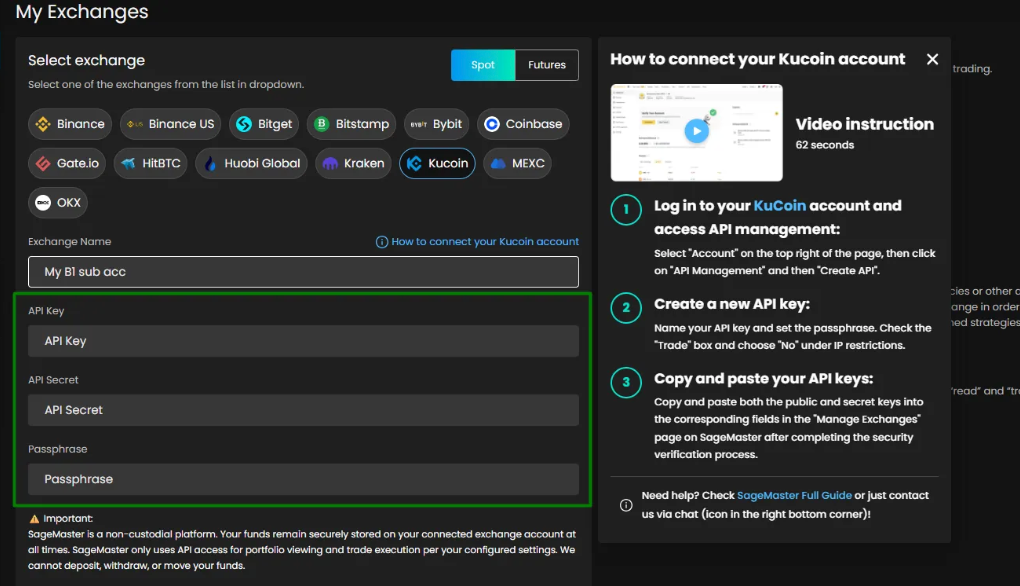
Click “Authorize API Connection” to finish connecting your Sagemaster account with Kucoin.
What’s Next?
After connecting your accounts, you should make sure that your Kukoin account is funded with the right currency.
Enable Futures
NOTE: KuCoin futures trading is coming soon to SageMaster! Stay tuned for updates.
Please check Kucoin guide to enable futures on your Kucoin account.
If you already have an account, follow the steps:
Log in to your Kukoin account, click on ”Manage Account” and go to the “API Management” page.
a.
Select “Create API” on the page
a.
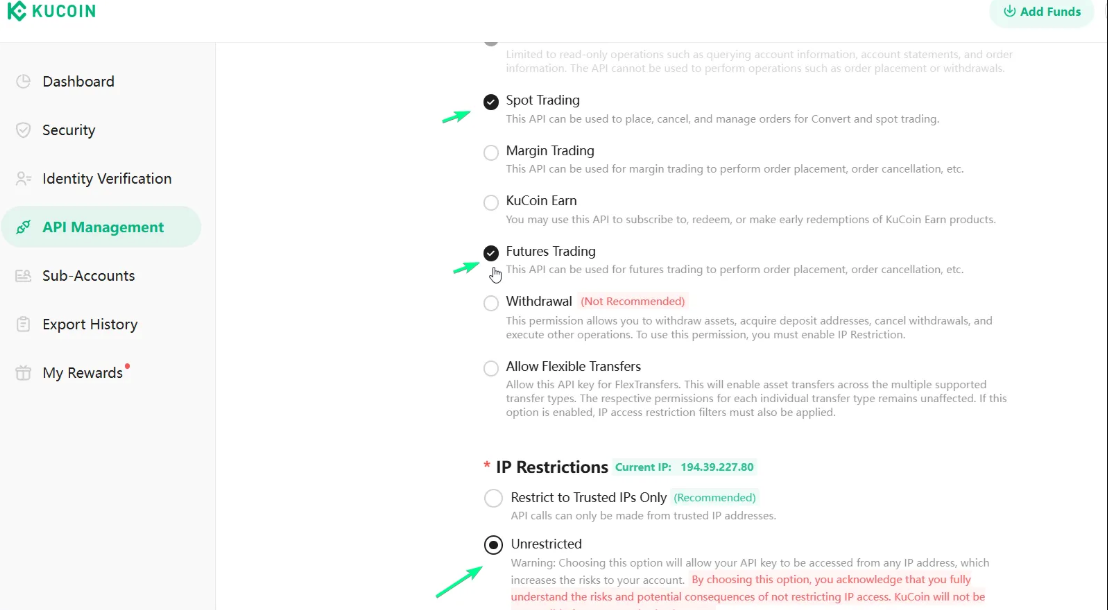
Give permission to “Trade” as shown in the image.
Enter a label for the API key. Example “SageMaster2”.
Enter an API Passphrase for this exchange. Copy the “API Passphrase” and save.
Select “Unrestricted” option in “IP Restrictions” section then click “Next”
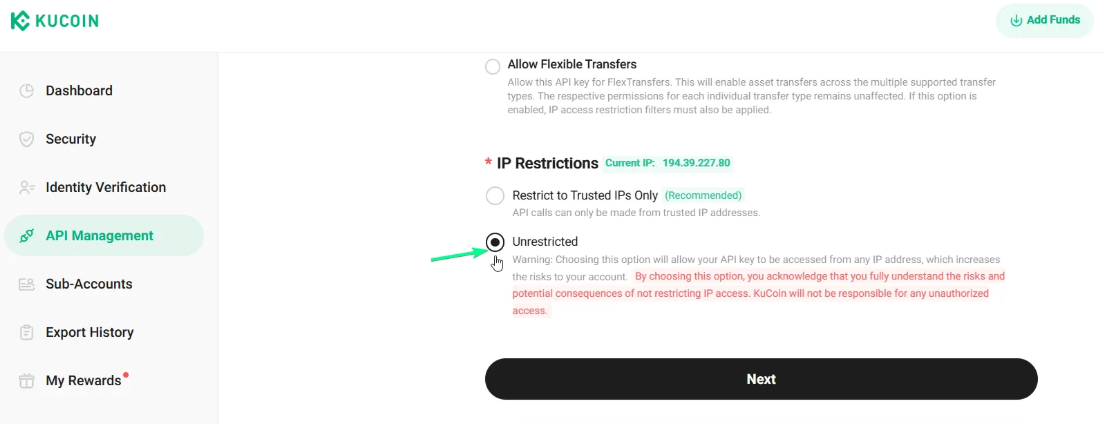
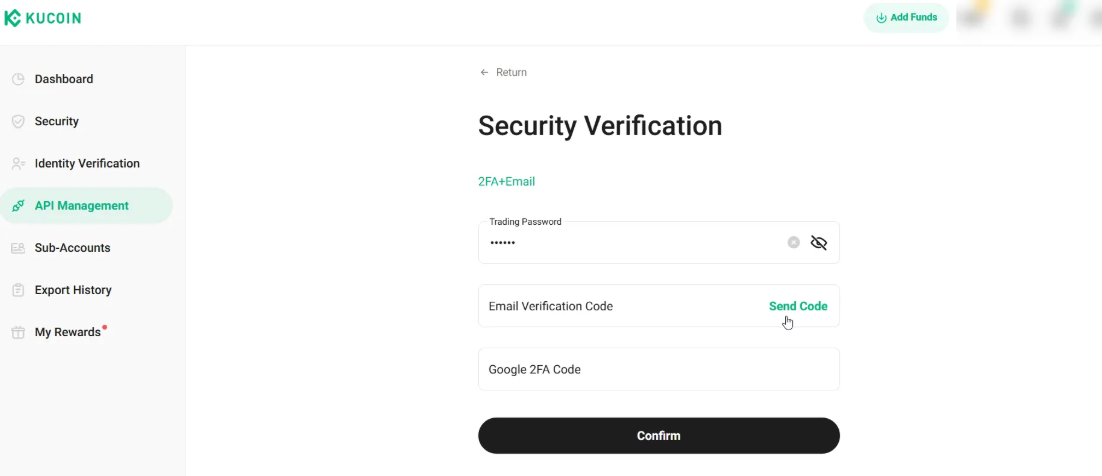
Confirm Two-factor Authentication.
After you complete the steps, a new API Key will appear in a popup window. You'll need to copy and save API Key and Secret. Once they are saved, click Confirm
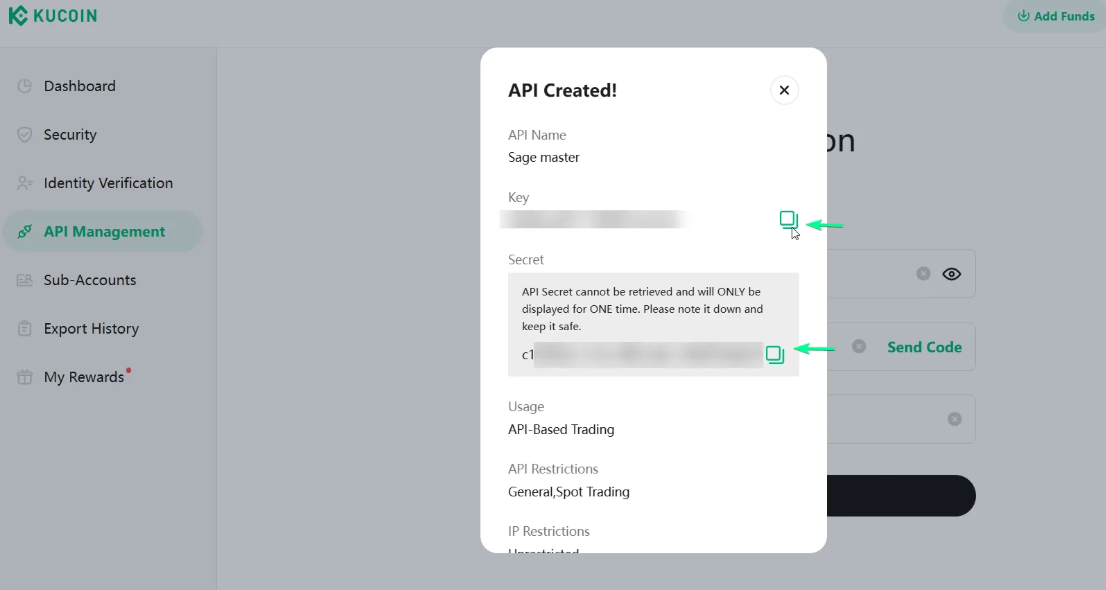
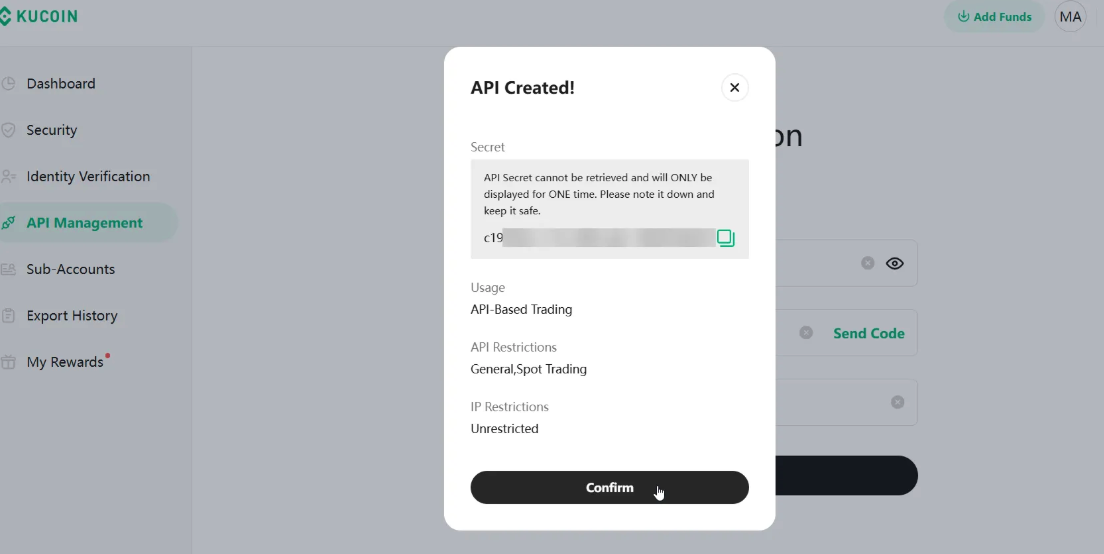
Your new API key has been created. Now you can copy your API Key and Paste it to SageMaster.
To paste your API Key on SageMaster, go to your Sagemaster account and click “My Exchanges” in My settings section or in the Side menu
Click the “Connect Exchange” button, select Futures tab, choose Kucoin, and paste the API key, API Key secret and Passphrase
Click “Authorize API Connection” to finish connecting your Sagemaster account with Kucoin.