Getting Started with the AI Basket
Written By Ehsaan XP
Last updated 7 months ago
Welcome to the practical part of your journey! In this chapter, we'll guide you through the process of creating and customizing your own AI Basket on our platform. Whether you're a beginner or a seasoned investor, this step-by-step guide will help you set up your basket to align with your investment goals.
Step-by-Step Guide
Exploring Preset Baskets
Upon entering the AI Basket section, you can choose to manage your existing baskets or explore new ones.
On the main menu, locate the "AI Basket" section. Here, you'll find both "Your Baskets" and the option to "Explore" preset baskets on the same screen.

Explore Section
Browse through a variety of preset baskets curated by our experts or community members.
Use the “Exchange” filter

Browsing Preset Baskets:
Filter Baskets:
Use filters to sort baskets by exchange or performance period (1w, 1m, 3m, 6m, 1y).
This helps you find baskets that match your interests and investment criteria.
View Basket Information:
Name: The name of the basket.
Allocation: The percentage allocation to each asset in the basket.
Profit for the Period: Historical performance over the selected time frame.
Coins Set: The assets included in the basket.
Followers: How many users clone in this basket.
Short Description: A brief overview of the basket's strategy or focus.

Viewing Basket Details
When you find a basket that interests you, click on its card to see full details.
Basket Details Page Includes:
Time Period Selector: Options such as 1w, 1m, 3m, 6m, 1y to adjust the performance data displayed.
Performance Chart: Shows backtested performance for the selected period.
Detailed Allocation Table:
Coin Name: The assets in the basket.
Allocation %: The target percentage for each asset.
Current Price: The latest market price.
24h Change: The price change over the last 24 hours.
Long Description: A detailed explanation of the basket's clone strategy, objectives, and any relevant information.
Capital Management:
Initial Capital: Enter the amount you wish to allocate to this basket (default is $1,000).
Estimated Profit: Displays an estimated profit for the selected period based on historical data.
Disclaimer: Estimated profits are based on historical performance and do not guarantee future results.
Other Popular Baskets:
A selection of six randomly picked baskets from the same exchange with positive gains over the last month.
Provides additional options that might interest you.

Create an AI Basket from the preset
Select Your Initial Capital
In Capital Management, enter the amount you wish to allocate to the basket.
The default amount is $1,000, but you can adjust this based on your budget.
Review Estimated Profit
The platform will display an estimated profit for the selected period based on historical data.
Disclaimer: Estimated profits are for informational purposes only and do not guarantee future returns.
Proceed to Basket Settings
Click the "Start Now" button to proceed to the Basket Settings.

Customizing Basket Settings:
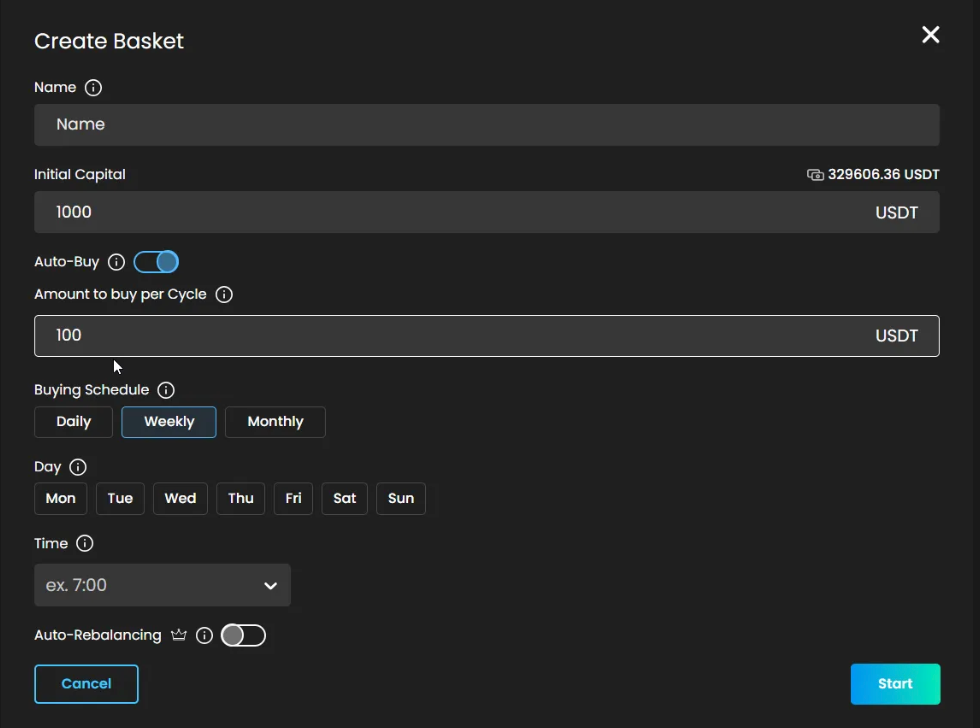
Enable Auto-Buy (Optional):
Toggle the switch to enable automatic purchases into your basket.
This feature allows you to contribute additional funds at regular intervals.
Set Auto-Buy Schedule:
You can fully customize the auto-buy schedule to suit your preferences.
Daily: Select a specific time each day for the auto-buy to occur.
Weekly: Choose a day of the week and a specific time.
Monthly: Enter a day of the month (1-28) and a time.
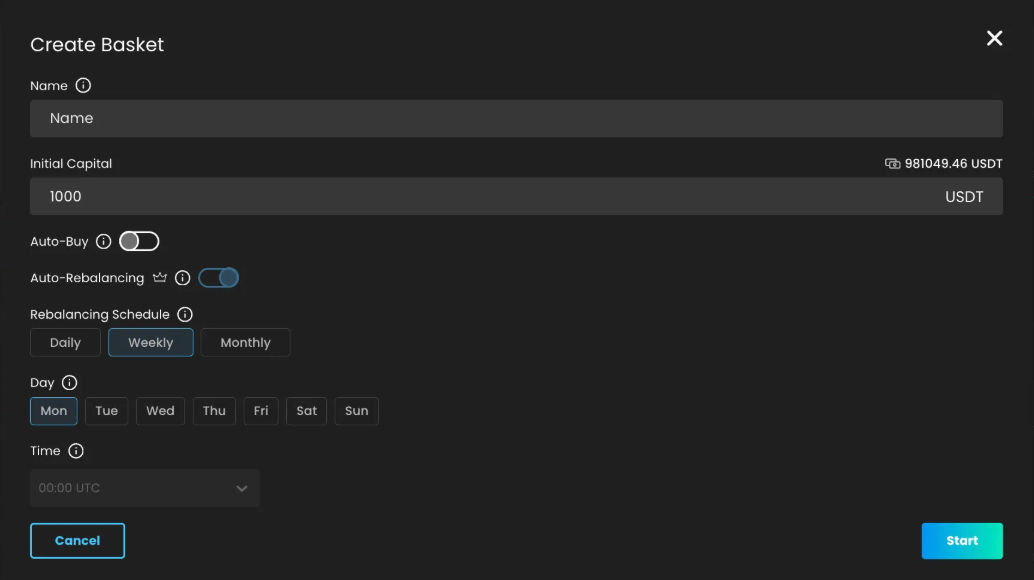
Auto-Rebalancing:
All presets have auto-rebalancing: Weekly every Monday at 00:00 UTC
Customizable Rebalancing :
Customizable rebalancing - not available now
Review and confirm
After setting your preferences, review the summary of your capital and settings.
Click "Start to finalize your investment in the basket.
Creating Your Own Basket
Our platform allows anyone to create a custom basket tailored to their specific preferences. Here's how you can do it:
Steps to Create a Custom Basket
Start a New Basket: Click on the "Create Basket" button available on the AI Basket page.

Select Quote Currency
Choose your preferred quote currency (e.g., USDT).
This will determine the base currency for your trades.
Only assets available for the selected quote currency on your chosen exchange will be displayed.

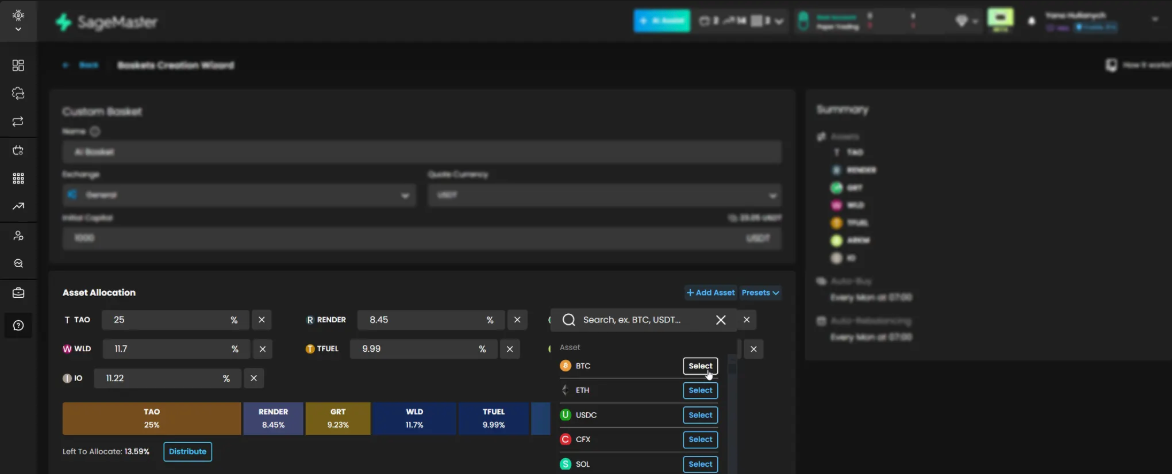
Specify Asset Allocation
Add Assets:
Search for and select the assets you wish to include in your basket.
You can include any number of assets, as long as the total allocation sums to 100%.
Set Allocations:
For each selected asset, enter the desired allocation percentage using input fields.
The platform ensures that the sum of all allocations equals 100%.
Note: Precise control over each asset's percentage is provided through input fields.
Initial Capital
Enter the total amount you wish to allocate to your basket.
Option to Use Existing Assets:
You can choose to include assets already in your wallet as part of the initial capital.
This imports available assets as part of your initial allocation.

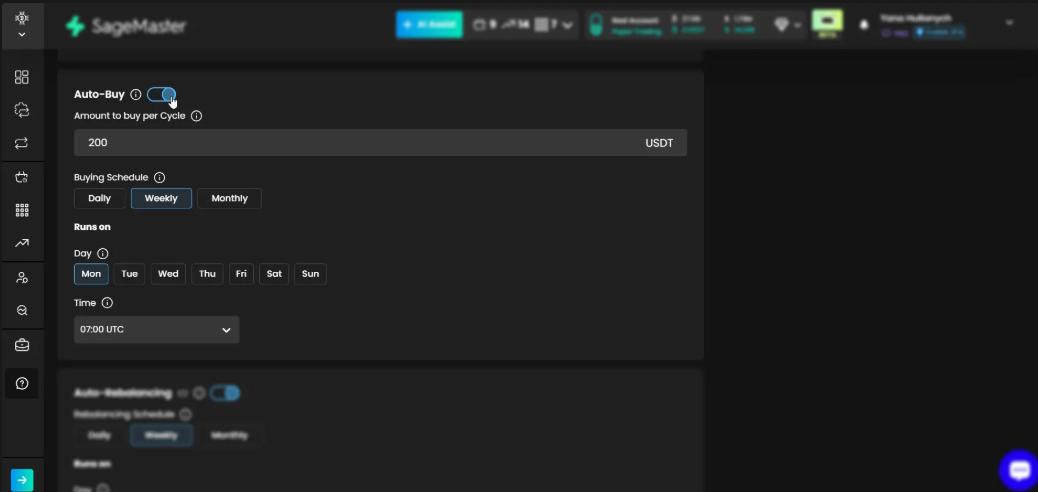
Auto-Buy (Optional)
Enable Auto-Buy:
Toggle the switch to enable automatic purchases into your basket.
Configure Auto-Buy Schedule:
Daily: Select a specific time each day.
Weekly: Choose a day of the week and a time.
Monthly: Enter a day of the month (1-28) and a time.
Set Auto-Buy Amount:
Specify the amount to be invested automatically at each interval.
Configure Rebalancing (Optional)
Enable Rebalancing:
Toggle the switch to turn on automatic rebalancing.
Set Rebalancing Schedule:
Daily: Select a specific time each day.
Weekly: Choose a day and time.
Monthly: Enter a day (1-28) and time.
Note: Only PRO users can enable automatic rebalancing for their own custom baskets. Regular users can perform manual rebalancing when needed.
Review and Create
Review all your settings, allocations, and schedules to ensure everything is as desired.
Click "Create Basket" to finalize the creation of your custom AI Basket.

Customization Options
Personalizing your AI Basket is key to aligning it with your investment strategy. Here's how you can adjust various elements:
Adjusting Risk Levels
Asset Selection:
Choose assets that match your risk tolerance.
High-volatility assets may offer higher returns but come with increased risk.
Diversify across different asset types and sectors to mitigate risk.
Allocation Adjustments:
Allocate a larger percentage to stable assets if you prefer lower risk.
Increase allocations to growth assets if you're willing to accept more risk for potential higher returns.
Editing Allocations:
You can edit your basket's allocations at any time through the "Edit Allocation" feature.
Changes in allocation will trigger an immediate rebalancing to align your holdings with the new targets.
Note: The edit auto-rebalancing will be released soon; regular users can rebalance manually.
Investment Amounts
Initial Capital:
Set an amount that fits your budget and investment plan.
Remember, you can start small and add more funds over time.
Auto-Buy Amounts:
Decide on regular contributions to build your basket over time.
This can help implement a Dollar Cost Averaging strategy.
Add Capital Feature:
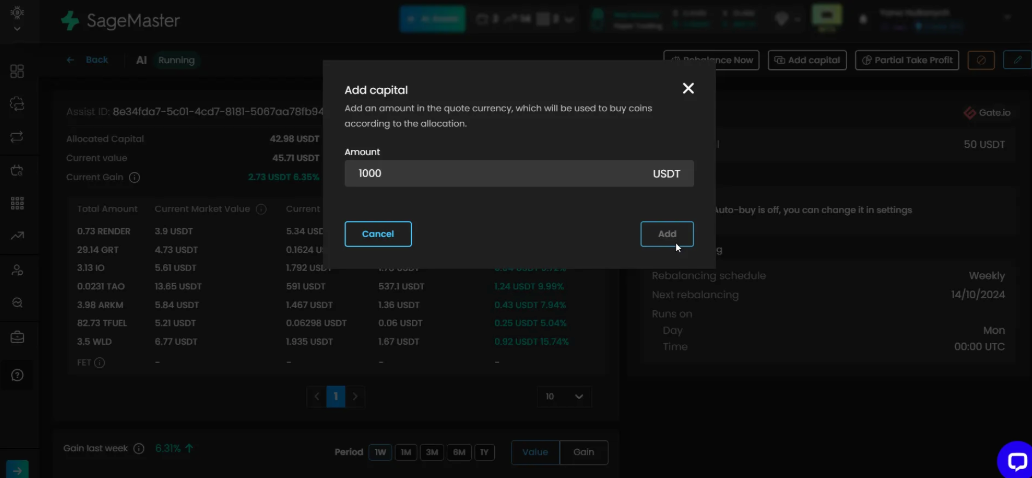
At any time, you can add additional funds to your basket.
Use the "Add capital" option within your basket's management page.
Specify the amount you wish to add, and the funds will be allocated according to your basket's allocation.
Asset Choices
Adding or Removing Assets:
Modify the assets included in your basket to reflect changing market conditions or personal preferences.
Access the "Edit Allocation" feature to make changes.
Edit Allocation Percentages:
Adjust the percentage allocations to assets within your basket using input fields.
Ensure that the total allocation always sums to 100%.
Note on Allocation Changes:
Editing allocations will cause an immediate rebalancing of your basket to match the new targets.
Be mindful of potential tax implications or transaction fees associated with rebalancing.
Edit auto-rebalance will be released soon

Tips for Optimization
Enhance your investment experience with these best practices:
Regularly Monitor Your Basket
Performance Tracking:
Use the performance charts to monitor your basket's growth over different time periods (1w, 1m, 3m, 6m, 1y).
Adjust your strategy as needed based on performance trends.
Allocation Overview:
Review the allocation table and donut chart to see how your current holdings compare to your target allocations.
The chart visually represents the allocation of each asset, helping you quickly assess any deviations.
Event History:
Check the full history of events for your basket, including auto-rebalance and auto-buy
Utilize Rebalancing
Maintain Desired Allocations:
Regular rebalancing helps keep your basket aligned with your investment strategy and risk tolerance.
Adjust Rebalancing Settings:
Modify the rebalancing schedule based on market volatility or personal preference.
Manual Rebalancing:
Use the "Rebalance Now" feature to perform a manual rebalancing.
Note: Manual rebalancing is limited to once every 24 hours.

Leverage Platform Tools
MasterGPT Trading Co-Pilot:
Use our MasterGPT tool, your Trading Co-Pilot, to analyze the latest news and provide technical analysis.
Stay informed about market trends that could impact your assets.
Auto-Buy:
Automate your investments to take advantage of Dollar Cost Averaging.
Adjust the auto-buy amount and schedule to suit your financial situation.
Basket Management Actions:
Stop Basket:
You can stop your basket at any time.
Upon stopping, you have options:
Stop the Basket and leave the Assets:
All coins will remain in your wallet as they are.
Your basket will be deactivated, but your assets will remain in the balance.
Sell All Assets to USDT and Stop the Basket:
Instantly sell all assets to USDT at the current market price.
This realizes all profits or losses up to that point.
Note: Once a basket is stopped, it cannot be restarted. You would need to create a new basket to resume investing.
Add capital:
Add additional funds to your basket at any time.
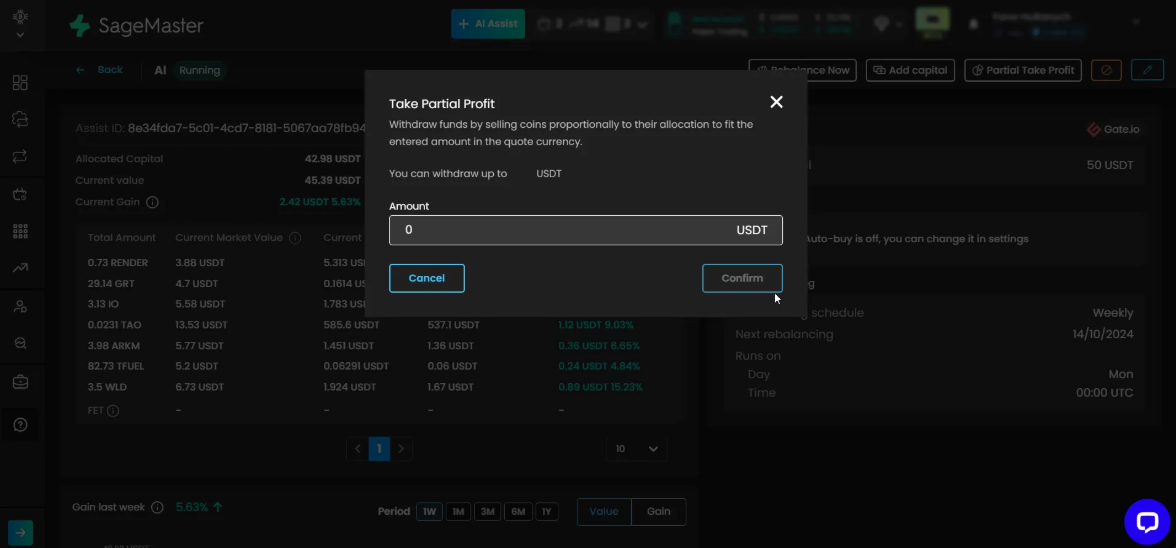
Take Partial Profit:
Withdraw funds by selling coins proportionally to their allocation to fit the amount you specify.
Consider Taking Profits
Take Partial Profit:
Use the "Partial Take Profit" feature to withdraw funds by selling assets proportionally.
Specify the amount you wish to withdraw in the quote currency.
Stay Informed and Educated
Stay Informed with MasterGPT:
Leverage the MasterGPT tool to stay updated on market trends, news, and technical analysis.
Continuous Learning:
Explore our educational resources and tutorials to deepen your understanding of market dynamics and investment strategies.
Community Engagement:
Participate in community discussions and learn from other investors' experiences.
Disclaimer: Trading involves significant financial risk and can result in substantial losses. Past performance does not guarantee future results. SageMaster does not provide financial advice. Users should ensure compliance with local regulations.