How To Connect Kraken Exchange
Disclaimer: Trading involves significant financial risk and can result in substantial losses. Past performance does not guarantee future results. SageMaster does not provide financial advice. Users should ensure compliance with local regulations.
Written By Ehsaan XP
Last updated 7 months ago
Prerequisites
Before you begin, ensure that you have the following prerequisites:
You’ve got a SageMaster account
You have a Kraken account
Connect Your Exchange
Creating a New API Key in Kraken
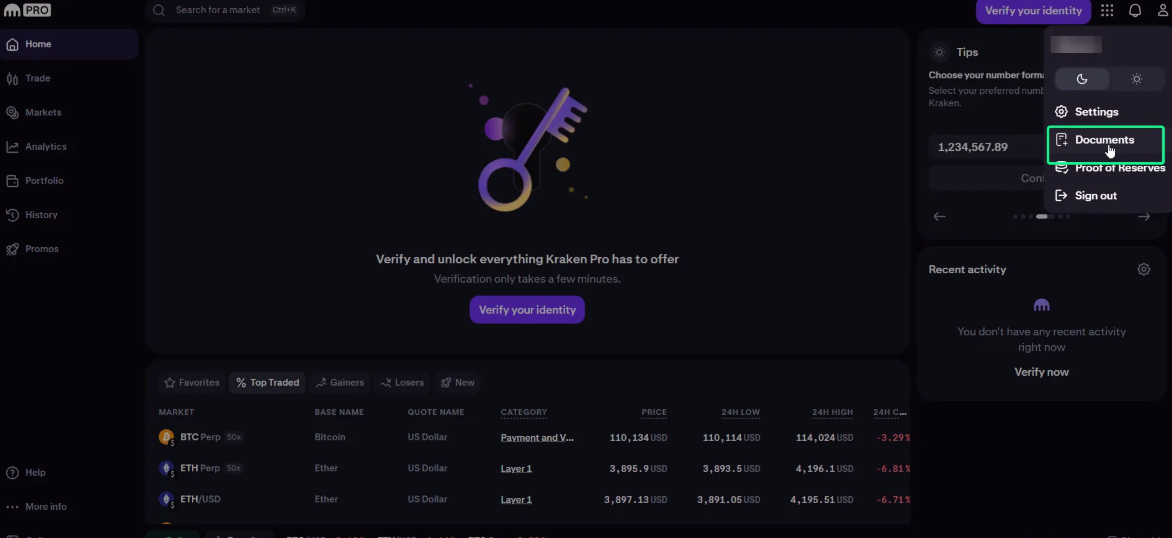
Log in to your Kraken account, click user icon in the top right corner, click Documents
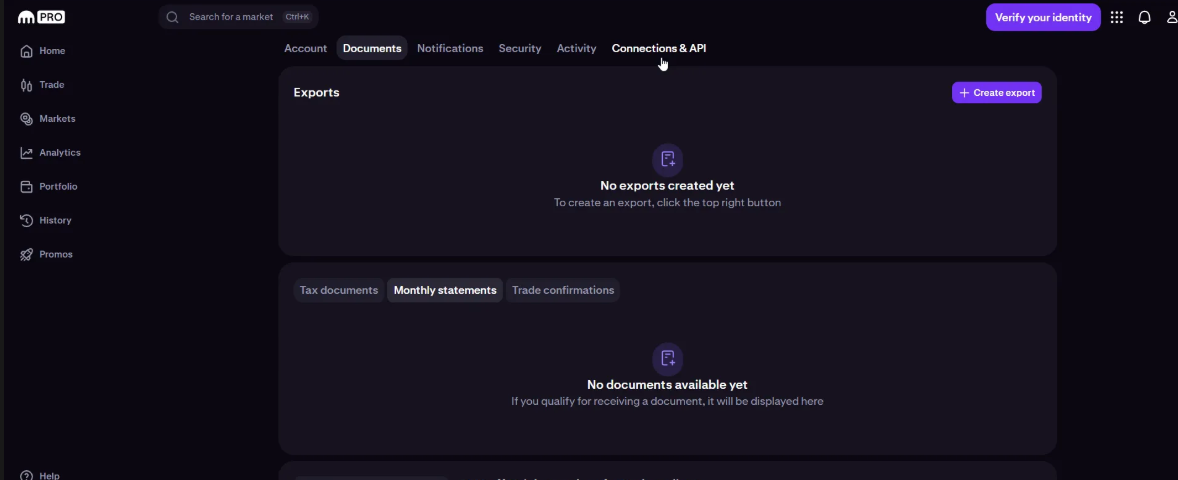
On Settings page, click Connections & API
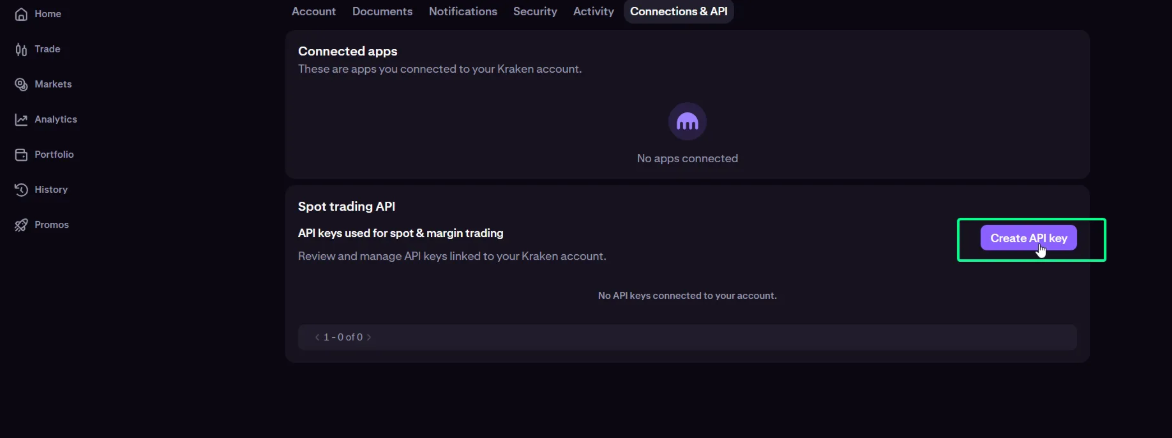
Click on Create API Key:
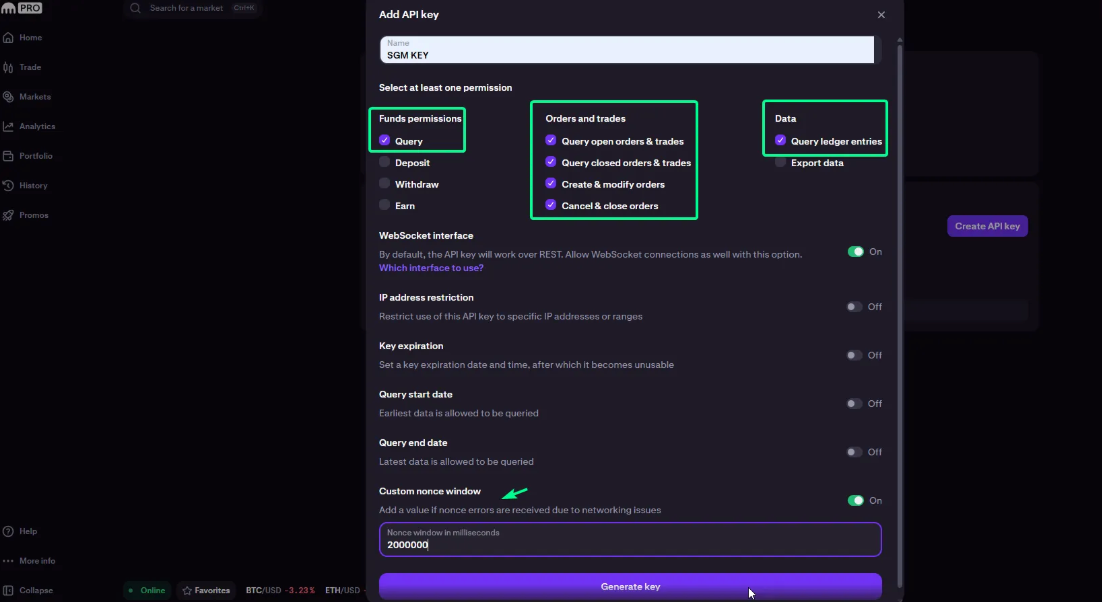
Enter a name for the API key. Example “SGM KEY”
Set the following (see images below):
Select permissions:
Query Funds
Query Open Orders & Trades
Query Closed Orders & Trades
Modify Orders
Cancel/Close Trades
Query Ledger Entries
Access WebSockets API
Set nonce window to 2000000.
Click on Generate Key.
Your new API key and secret will be displayed on the screen.
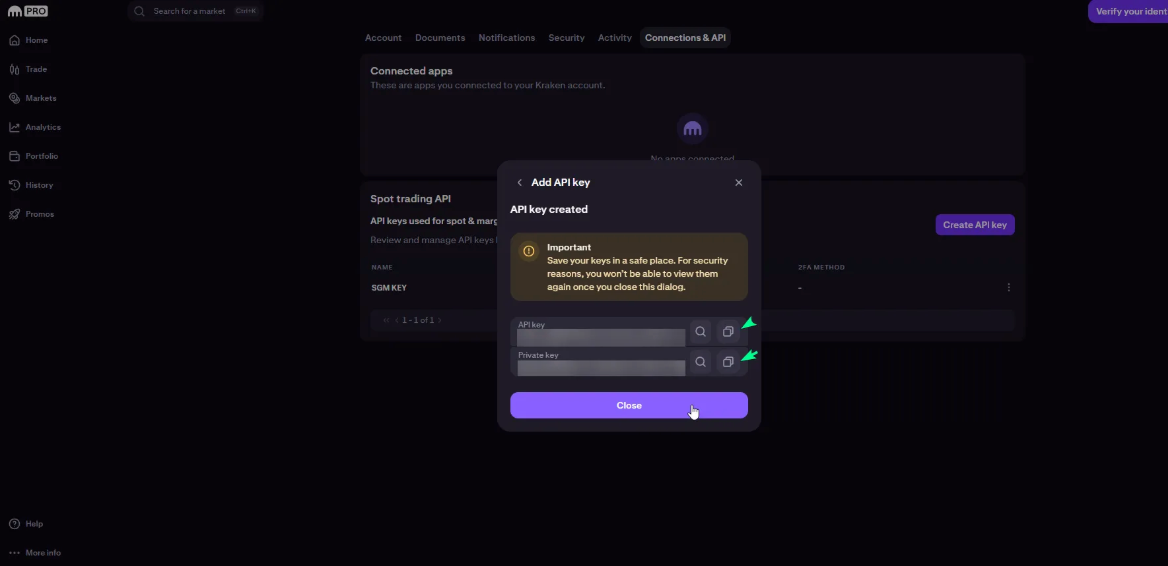
Click Save, then enter your 2FA for verification and confirm the email code sent to you.
Now go to your Sagemaster account and click “My Exchanges” in My settings section or in the Side menu
Click the “Connect Exchange” button, select Spot tab, choose Kraken, and paste the API key and API Key secret
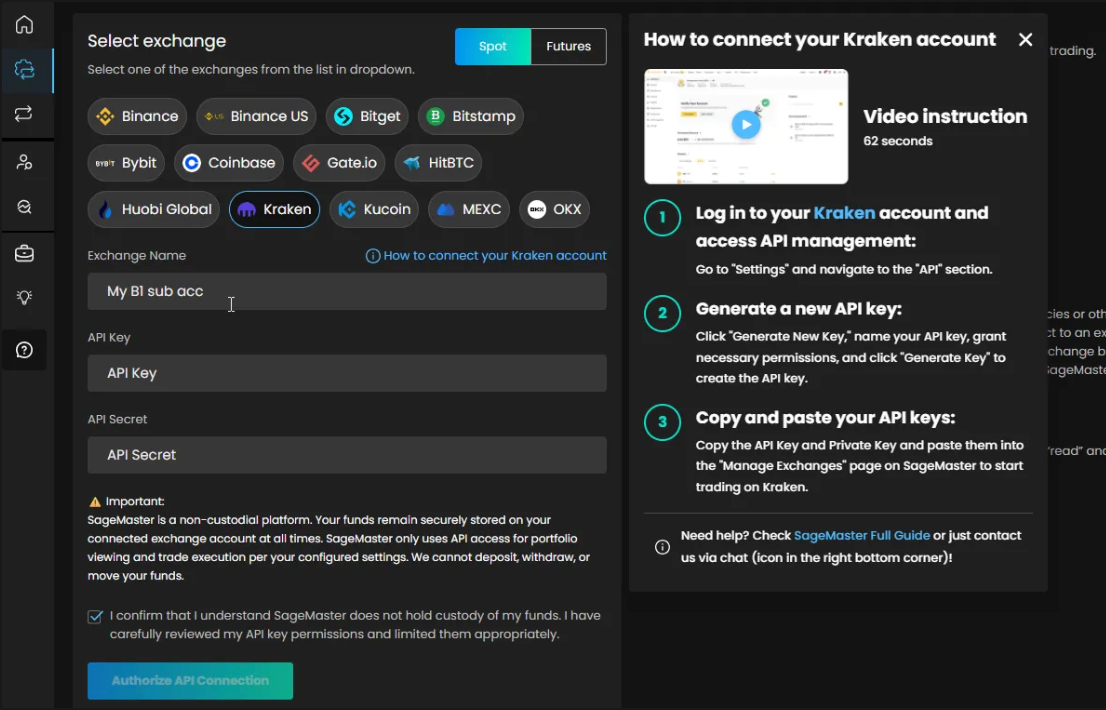
Click “Authorize API Connection” to finish connecting your Sagemaster account with Kraken.
What’s Next?
After connecting your accounts, you should make sure that your Kraken account is funded with the right currency.