User Guide: Setting Up 2FA
Written By Ehsaan XP
Last updated 7 months ago
Setting Up 2FA on SageMaster
Two-factor authentication (2FA) adds an extra layer of security to your SageMaster account. Here's how to set it up:
Navigate to Settings: You'll find the option to setup 2FA in your account settings.

Choose your 2FA method: SageMaster offers two 2FA methods - via email and via an authenticator app. You can select whichever method suits your needs.
Setting up Email 2FA: If you choose email, you'll receive a code in your email each time you login. You'll need to input this code to access your account.
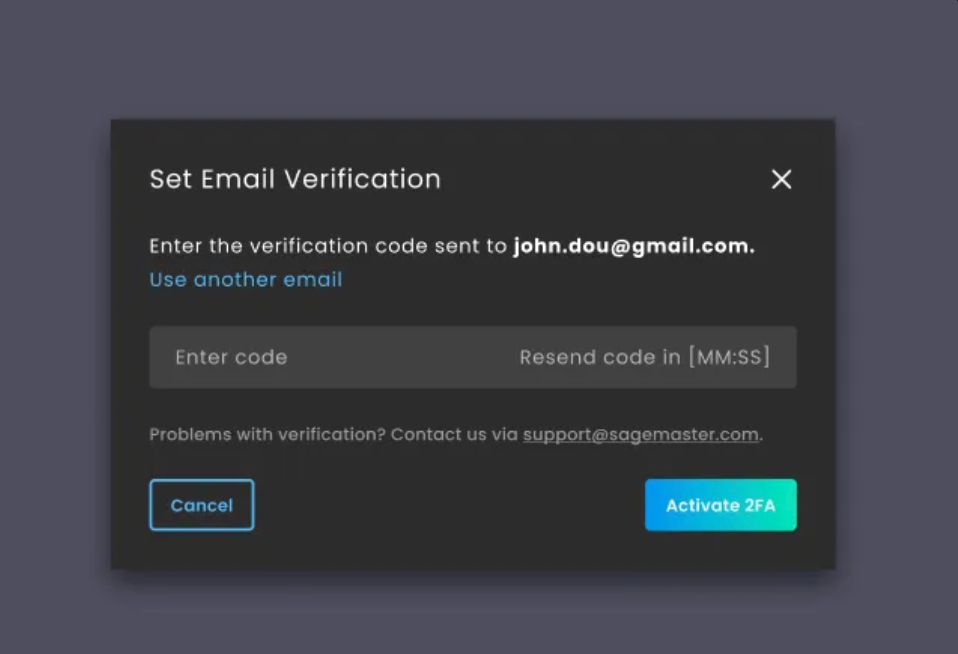
Setting up Authenticator App 2FA: If you choose an authenticator app, you'll need to scan a barcode with the app. The app will generate a code which you'll input each time you login.

Default 2FA Method: You can set either of these methods as your default 2FA method.

Disabling a Method: If you wish, you can disable any of these methods. However, for your security, we recommend keeping at least one method enabled.
Backup Codes: During setup, ensure you save your backup codes. These are crucial if you lose access to your device or email.
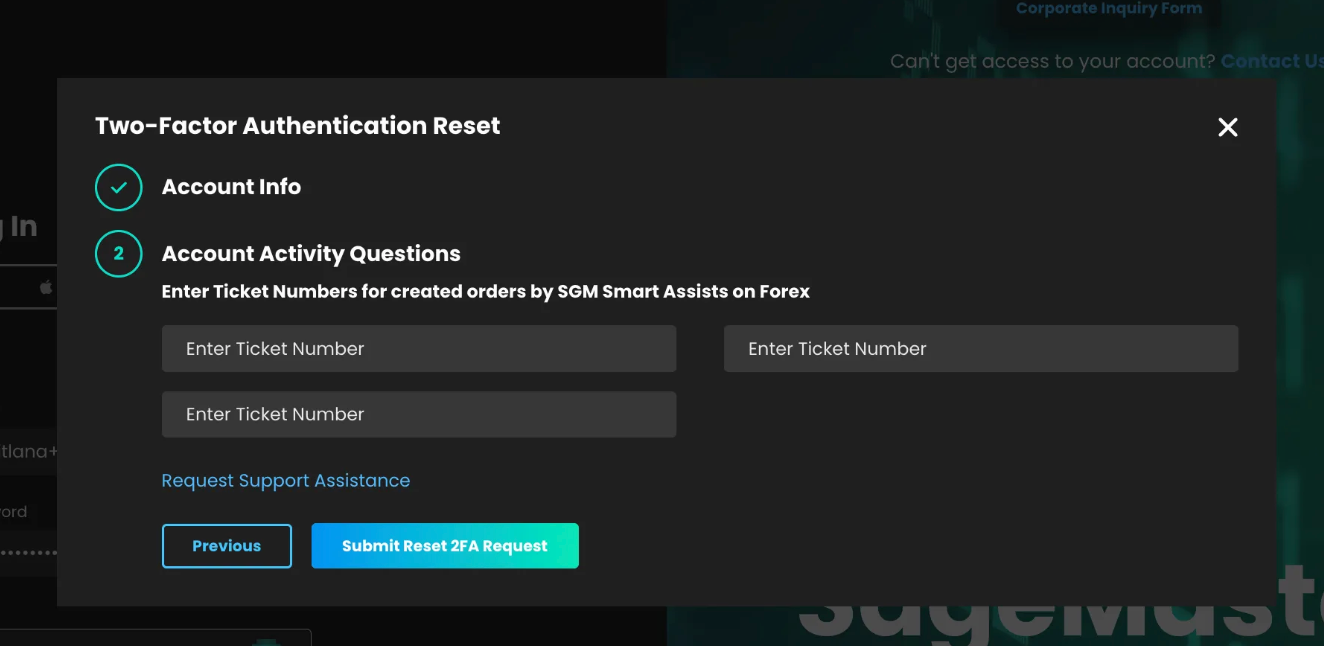
Resetting 2FA: If you lose access to your device or email, you can reset your 2FA via a special form as an alternative to backup codes.
If you have a connected exchange account, you need to enter the order amount from your exchange order history. The currency pair, price, and date will be provided as hints. If you have a connected broker account, you need to enter three ticket numbers from your broker account history.
Example for SGM:


Example for SFX:

Remember, 2FA is an important security measure. It helps protect your account even if someone else knows your password.
Disclaimer: Trading involves significant financial risk and can result in substantial losses. Past performance does not guarantee future results. SageMaster does not provide financial advice. Users should ensure compliance with local regulations.