Take Profit Calculation Mode
Written By Ehsaan XP
Last updated 4 months ago
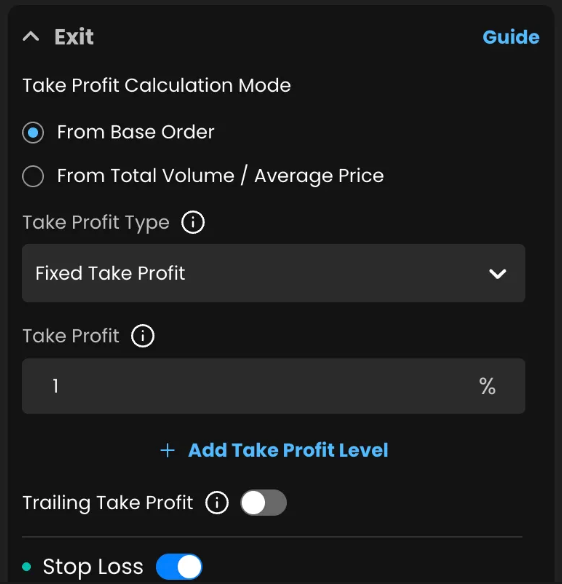
What this setting does
This setting lets you choose where the Take Profit (TP) % is anchored:
From Base Order (default) – TP is calculated from your very first fill.
From Total Volume / Average Price – TP is calculated from the weighted average of the Base Order plus any filled Extra Orders.
This is especially useful for DCA / QFL / bounce strategies that add size on dips and want to exit quickly on rebounds.
Where to find it
Assist › Edit (or Create) › Exit → Take Profit Calculation Mode
You’ll see two radio buttons:
○ From Base Order
○ From Total Volume / Average Price
Pick one, then set your Take Profit Type (e.g., Fixed) and Take Profit %, and Save.
Tip: If you run multiple Assists, set the mode per Assist to match each strategy’s exit logic.
How it’s calculated
Long positions
From Base Order:
TP trigger price =
base_entry × (1 + TP%)From Total Volume / Average Price:
TP trigger price =
avg_entry × (1 + TP%)where
avg_entry = Σ(price × qty) ÷ Σ(qty)using all filled orders (Base + Extra).
Short positions
From Base Order:
TP trigger price =
base_entry × (1 − TP%)From Total Volume / Average Price:
TP trigger price =
avg_entry × (1 − TP%)
When Average Price mode is selected, the TP target updates automatically as additional Extra Orders fill and the average entry changes.
Quick example (Long)
Base Order: $100
Extra Orders filled: $98 and $96
Weighted Average Entry: $98
TP%: 3%
Quick example (Short)
Base Order: $100
Extra Orders filled: $102 and $104
Weighted Average Entry: $102
TP%: 3%
When to choose each mode
From Base Order (default)
Breakout / trend-following entries where the first fill is your most important reference.
You want stricter profit targets and are comfortable with longer holds.
From Total Volume / Average Price
DCA / QFL / mean reversion setups with layered re-entries.
You want faster exits after price rebounds to (or above) your true cost basis.
You care about capital efficiency and shorter deal duration.
If no Extra Orders fill, both modes behave the same.
Step-by-step
Open your Assist and go to Exit.
Under Take Profit Calculation Mode, select a radio button:
From Base Order (default), or
From Total Volume / Average Price.
Choose Take Profit Type (e.g., Fixed Take Profit).
Set Take Profit %.
Click Save. New deals will use the selected mode.
What changes—and what doesn’t
✅ New deals follow the mode you select.
✅ The Deal Log shows which mode was used for each deal.
✅ Works the same across demo, live, and hybrid accounts and with Smart Assist flows.
🔄 Average Price mode continuously recalculates the TP trigger as Extra Orders fill.
❌ Existing open deals do not change their TP anchor if you switch modes; the change applies only to new deals after saving.
Tooltip (in‑app help text)
Take Profit Calculation Mode
Choose how your TP % is calculated:
From Base Order: TP is triggered when price reaches the % target from your first fill.
From Total Volume / Average Price: TP is triggered when price reaches the % target from the weighted average of your Base + Extra Orders.
Tip: Use Average Price for DCA/QFL strategies to capture quicker rebounds after adding size.
Best practices
Pair with conservative TP% when using Average Price to realize gains faster and recycle capital.
Mind tick size/price steps on your exchange—actual order prices are rounded to allowed increments.
For Trailing Take Profit (if enabled), the initial trigger is determined by your selected mode; trailing then behaves as usual.
Review Deal Logs if a TP didn’t fire—confirm the selected mode, average entry, and final trigger price.
Troubleshooting
“My TP didn’t trigger.”
Check which radio button was selected at deal start (Deal Log).
In Average Price mode, confirm that Extra Orders actually filled—only filled orders affect the average.
Verify your TP% and exchange tick size; rounding can move the actual order price slightly.
“Average Price looks off.”
It includes only filled orders (Base + Extra) and is quantity‑weighted. Pending orders don’t affect it.
FAQs
Does this work for shorts?
Yes. For shorts, TP is below the anchor price (uses 1 − TP%).
Can I switch modes with open deals?
You can change the setting anytime, but open deals keep their original mode. The new selection applies to future deals.
What if I never place Extra Orders?
Both modes behave the same because the average equals the base entry.